
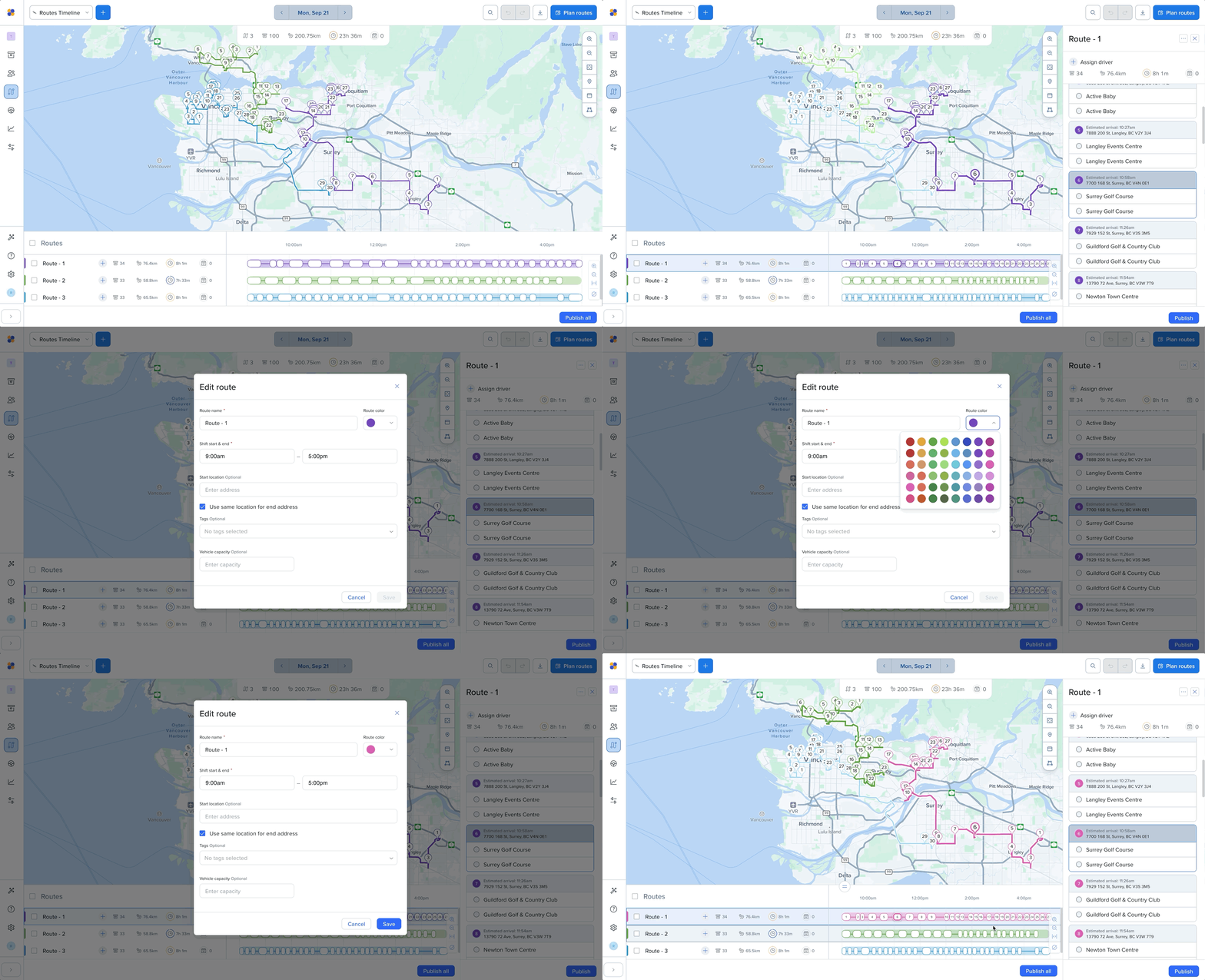
Each route has its own color on the map and the timeline. You can change it to anything you like, for example to match a driver, a vehicle, or a region.
Click the route on the map or the timeline.
Click the three dots (…) in the top right of the route panel and select Edit.
Click the colored circle to open the color picker.
Choose a new color from the palette.
Click Save.
The new color shows up on the map, timeline, and list views.
Good to know
You can change colors any time until the route is finished, even after it's published or while the driver is on the road. There's no need to republish, because the change applies right away.
Pick from 48 colors. You can't enter a custom color code.
Colors carry over. When you copy a route or reuse a day, the new routes keep the same colors.