
A time window is the delivery window you promise a customer — for example, 2:00 pm to 4:00 pm. It tells them when to expect their delivery so they're not waiting around all day.
Routific accepts two time formats:
12-hour clock: 2:00 pm – 4:00 pm
24-hour clock: 14:00 – 16:00
Add time windows via CSV upload
The fastest way to set time windows is during your CSV upload.
Add two columns to your file:
Time Window Start — when the customer is first available to receive a delivery
Time Window End — when the customer is no longer available
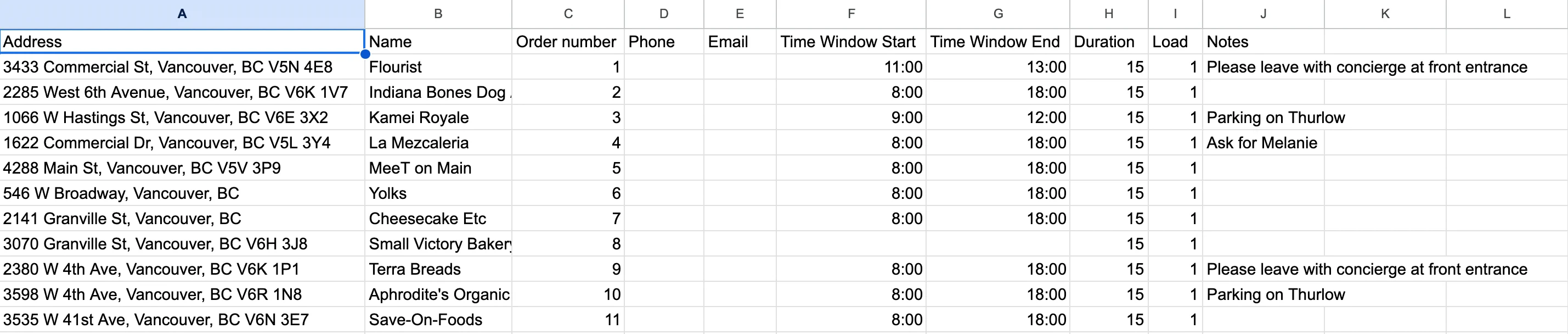
You can download a sample to use as a formatting guide
Add time windows manually
You can manually add time windows to existing orders or when creating new orders.
To add a time window to a new order:
Click the blue plus sign to create an order.
Scroll to Order details and enter the time window.
To add a time window to an existing order:
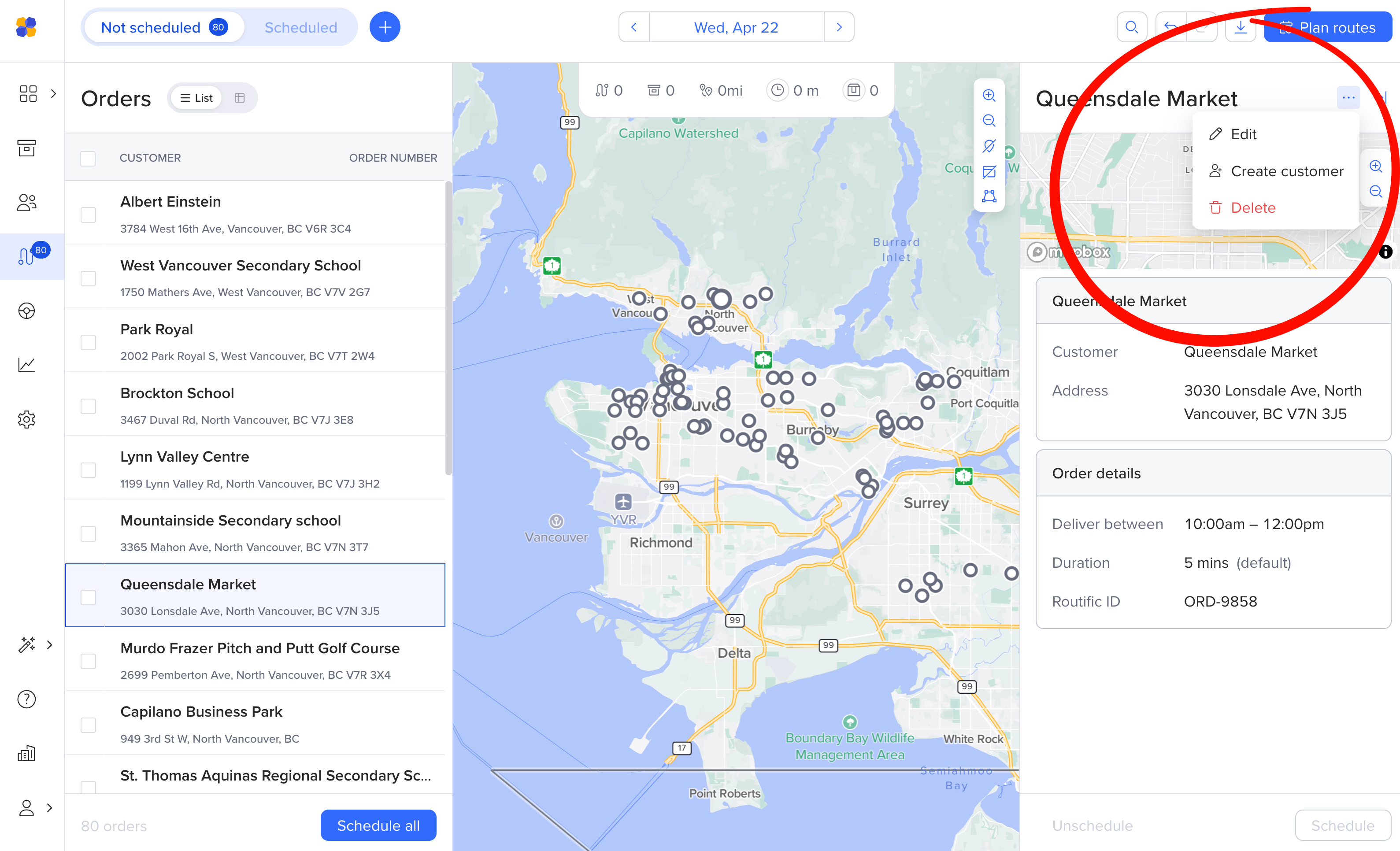
Select the order.
Click the 3-dot menu and choose Edit.
Scroll to Order details and enter the time window.
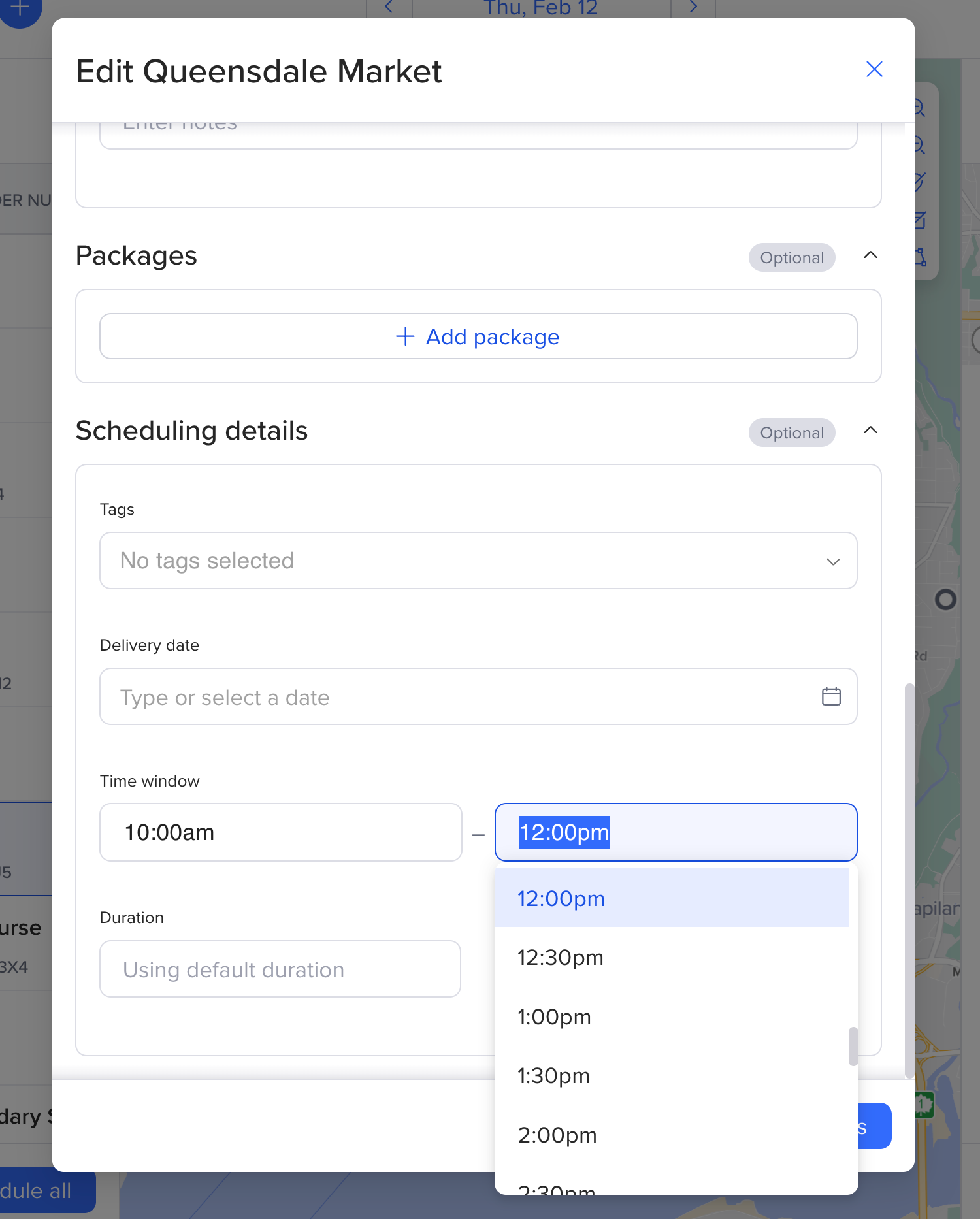
No time window? Leave it blank.
If an order can be delivered any time during the driver's shift, leave both fields empty. Routific will fit it into the route automatically.