Say goodbye to lost packages with proof of delivery!
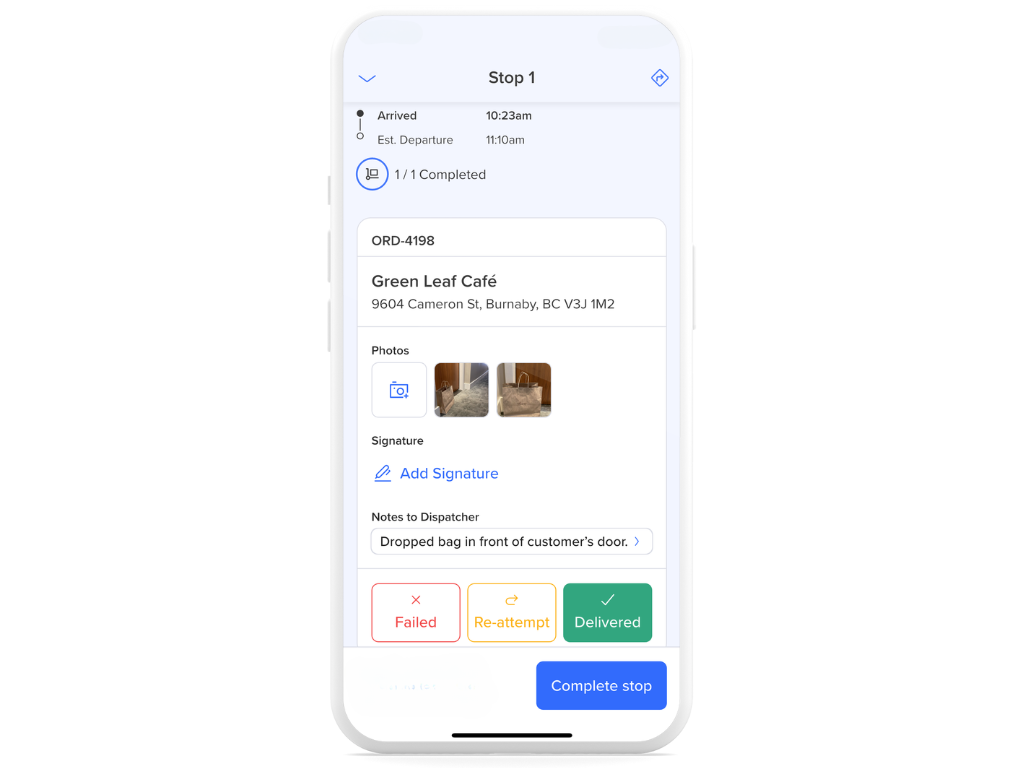
On the Routific mobile app, drivers can click into each stop. Within each stop, they can view all orders and order details.
Here, they can:
record proof of delivery with multiple photos:
upload directly from the camera
upload from camera’s photo gallery
collect a signature
read delivery notes
see order numbers
leave notes for the dispatcher
scan a barcode to validate a package for delivery *this feature only works if your dispatcher has uploaded barcodes
In addition to tracking your drivers live, dispatchers can see proof of delivery (POD) photos, signatures, and barcode verification in Routific as your driver captures them.
To view PODs, you must click into an individual order to see the order details:
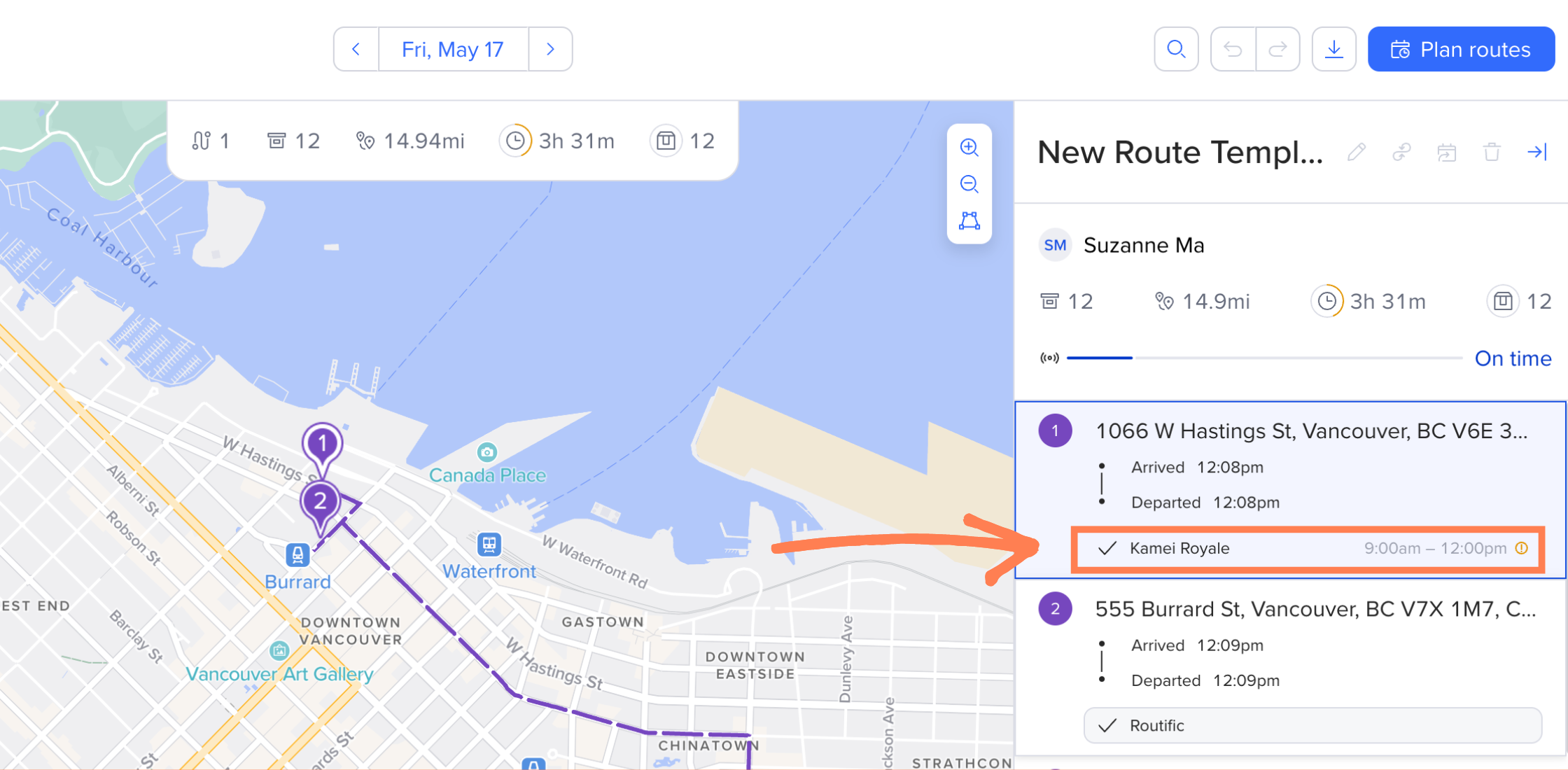
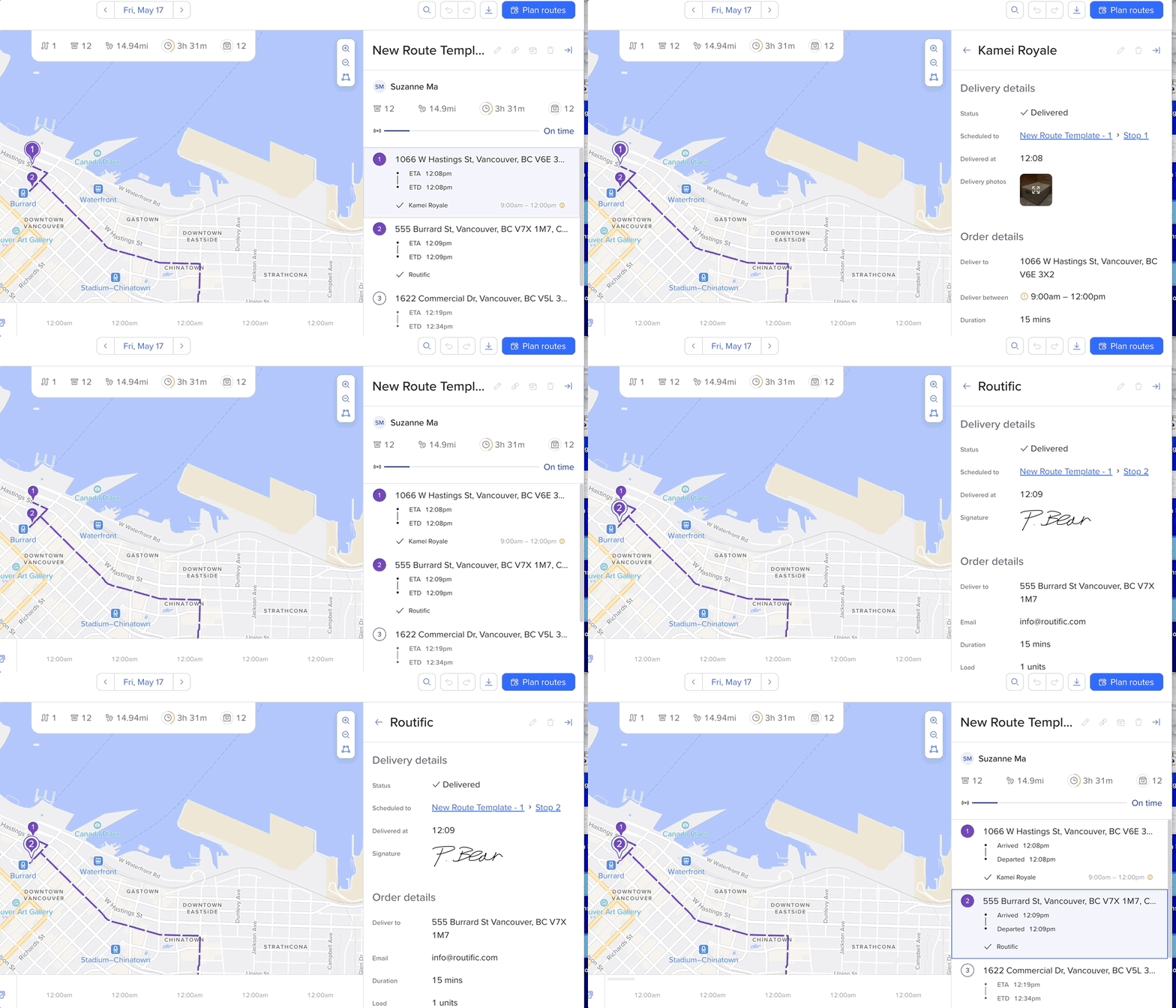
Any photos or signatures your drivers have collected can be found there.
In the example below, we click on Routific or Kamei to see the order details.
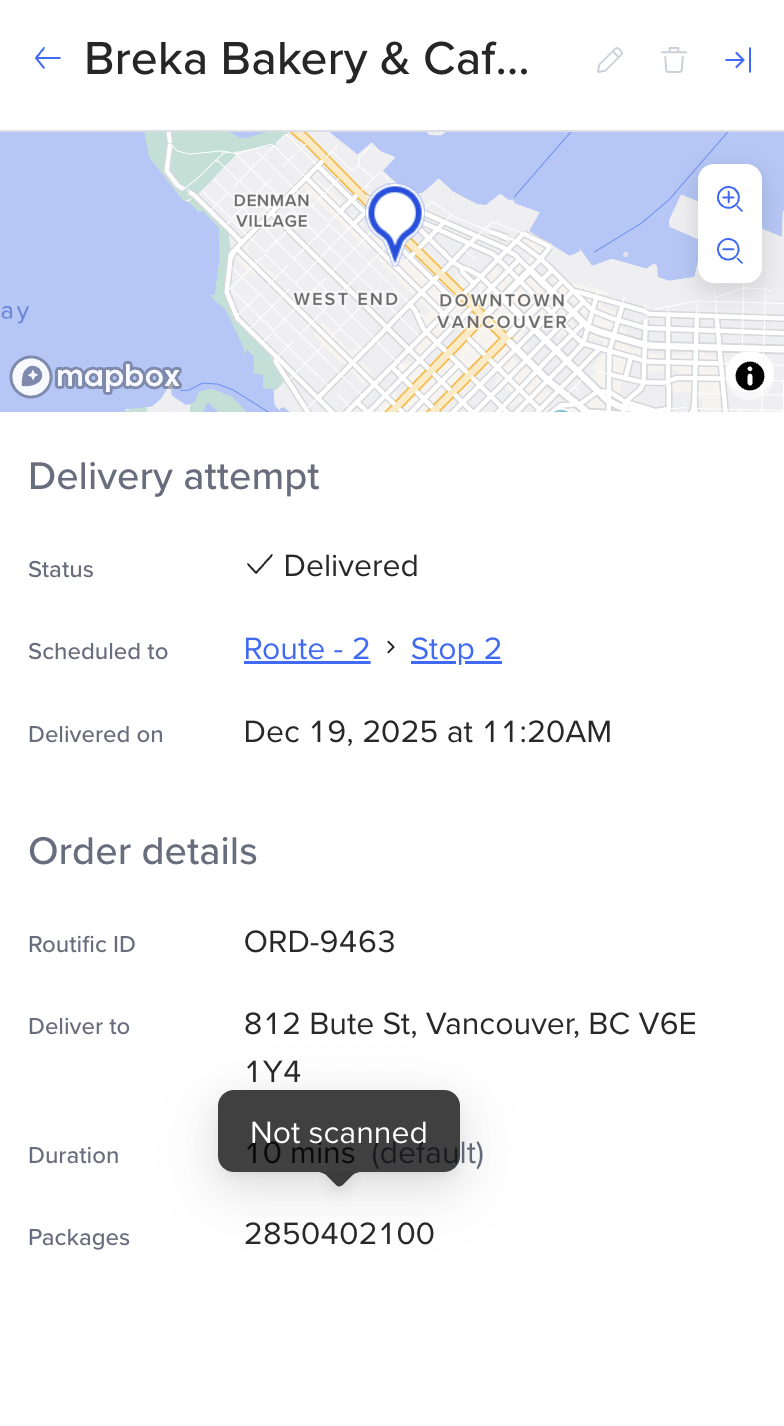
The barcode number appears without a status change.
Hovering over the barcode shows: Not scanned.
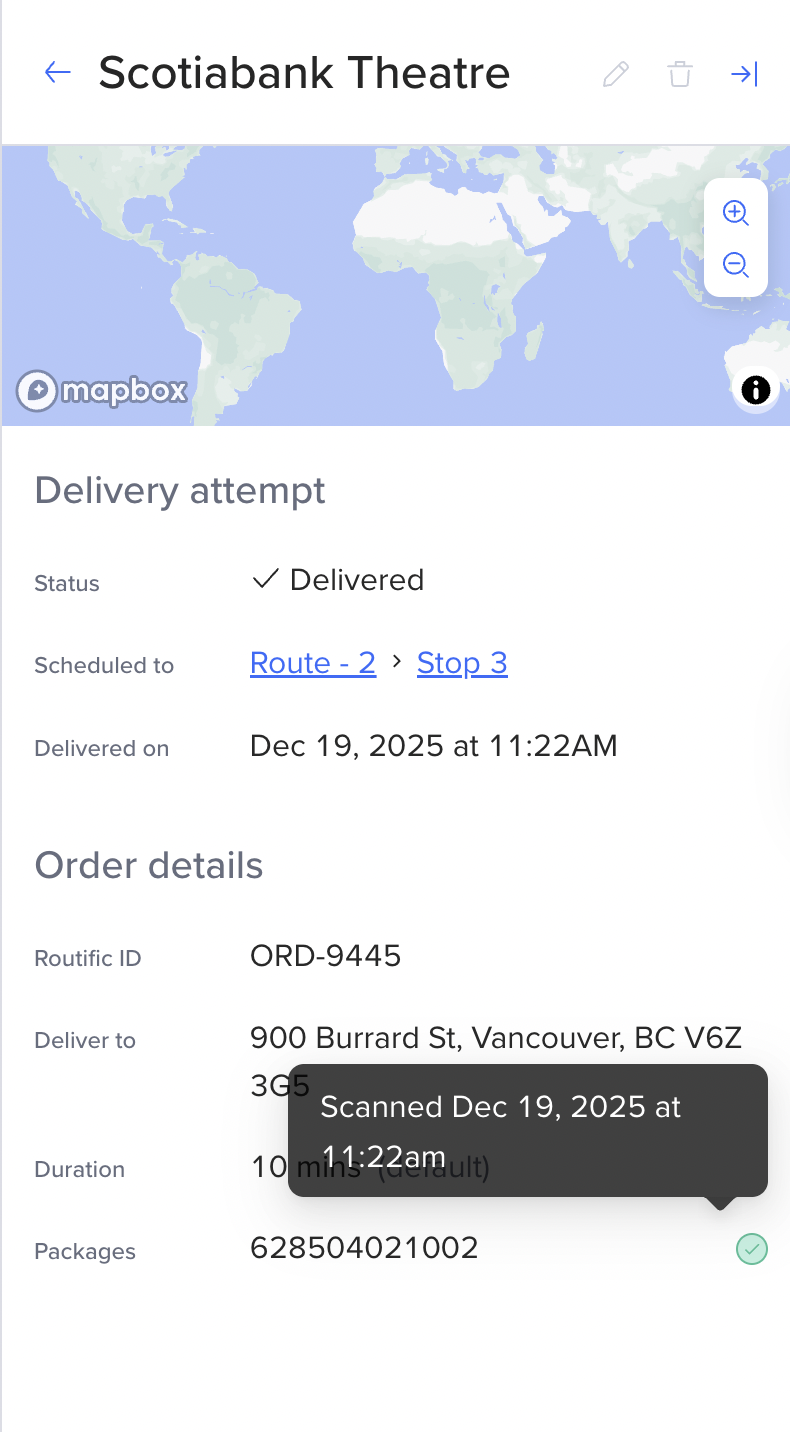
A green check mark appears next to the barcode.
Hovering over the barcode shows:
Scanned, along with the date and time the driver scanned it.
Questions or comments about barcode scanning? Let us know via in-app chat or email [email protected]! We’ll continue improving barcode scanning based on what we hear from you.