Customer notifications allow you to automatically notify your customers about the status of their delivery by SMS.

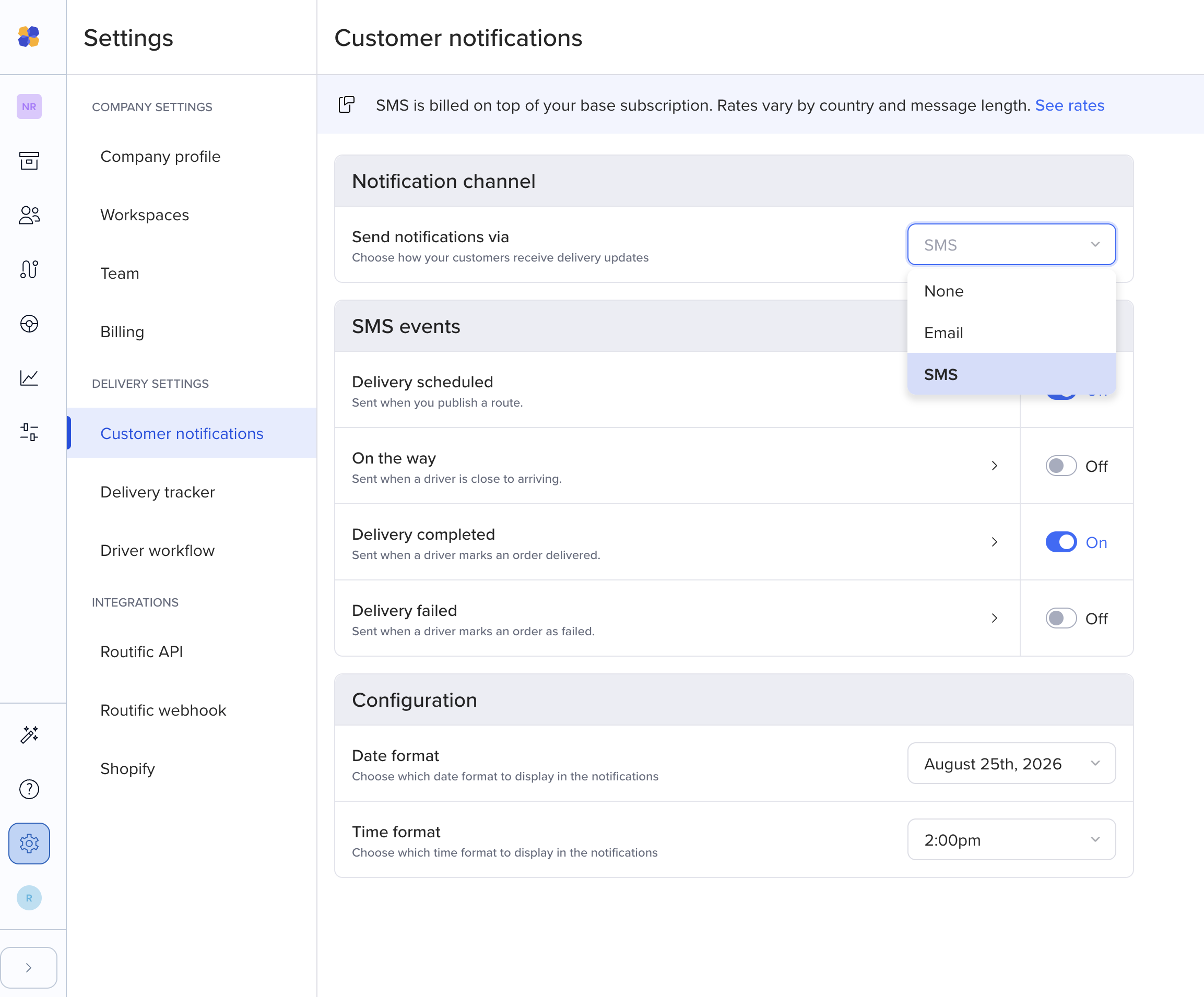
Go to your Company settings in the bottom left menu. Then choose Customer notifications. Then, under Send notifications via, click on the the drop down section that says “none”, and select the SMS option.
Under SMS events, you will see our 4 different notification types:
Delivery scheduled
On the way
Delivery completed
Delivery missed
Turn each notification type on and off using the on/off toggles on the right.
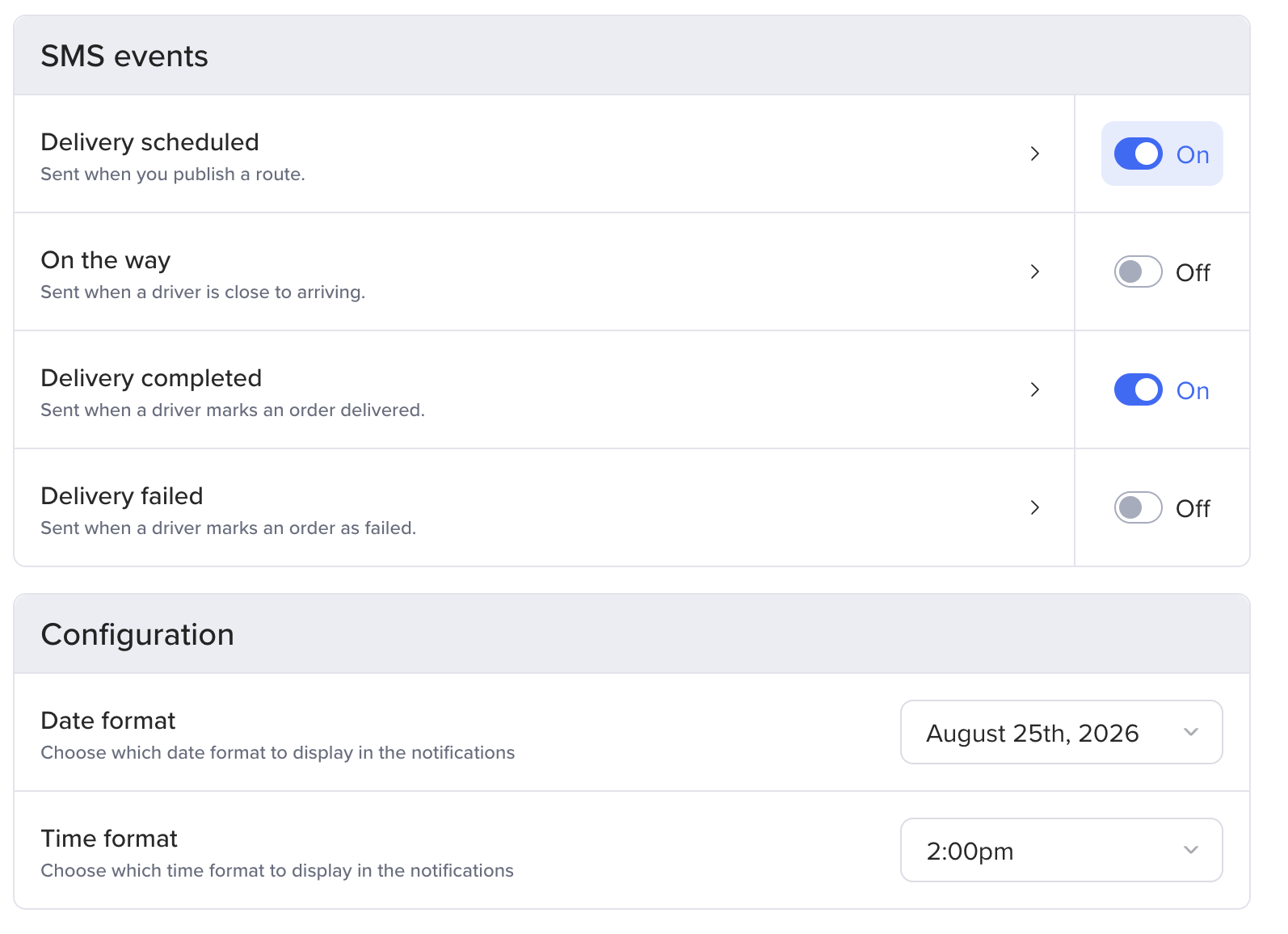
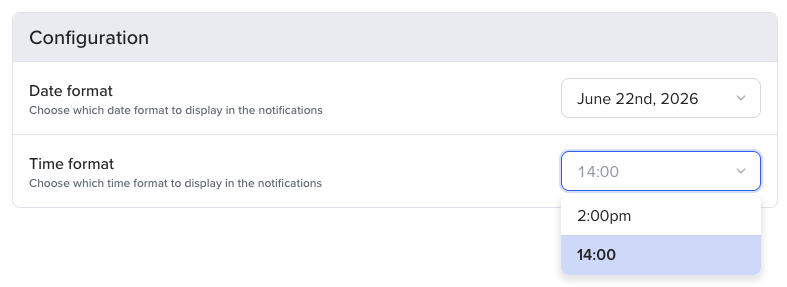
You can also make some further configurations:
Your preferred date format (3 options)
August 25th, 2026
2026-08-26
25-08-2026
Your preferred time format
2:00 pm
14:00
You can choose to send this notification
when you publish a route
or at certain time before the driver is expected to start their route
Before you publish, Routific will remind you how many notifications will be sent.
You may also let your customers know when to expect their delivery. You can choose the level of precision here: For example, if our ETA for the delivery is 10 a.m., a +/-30 minutes time window will let the customer know to expect it between 9:30 and 10:30 a.m.
This notification lets your customers know when the driver is approaching, and how soon they will arrive. Again, you can choose how early you want to notify the customer. For example, if the ETA is 10 a.m., you can set the notification to be sent at 9:30 a.m. letting them know the driver is 30 minutes away.
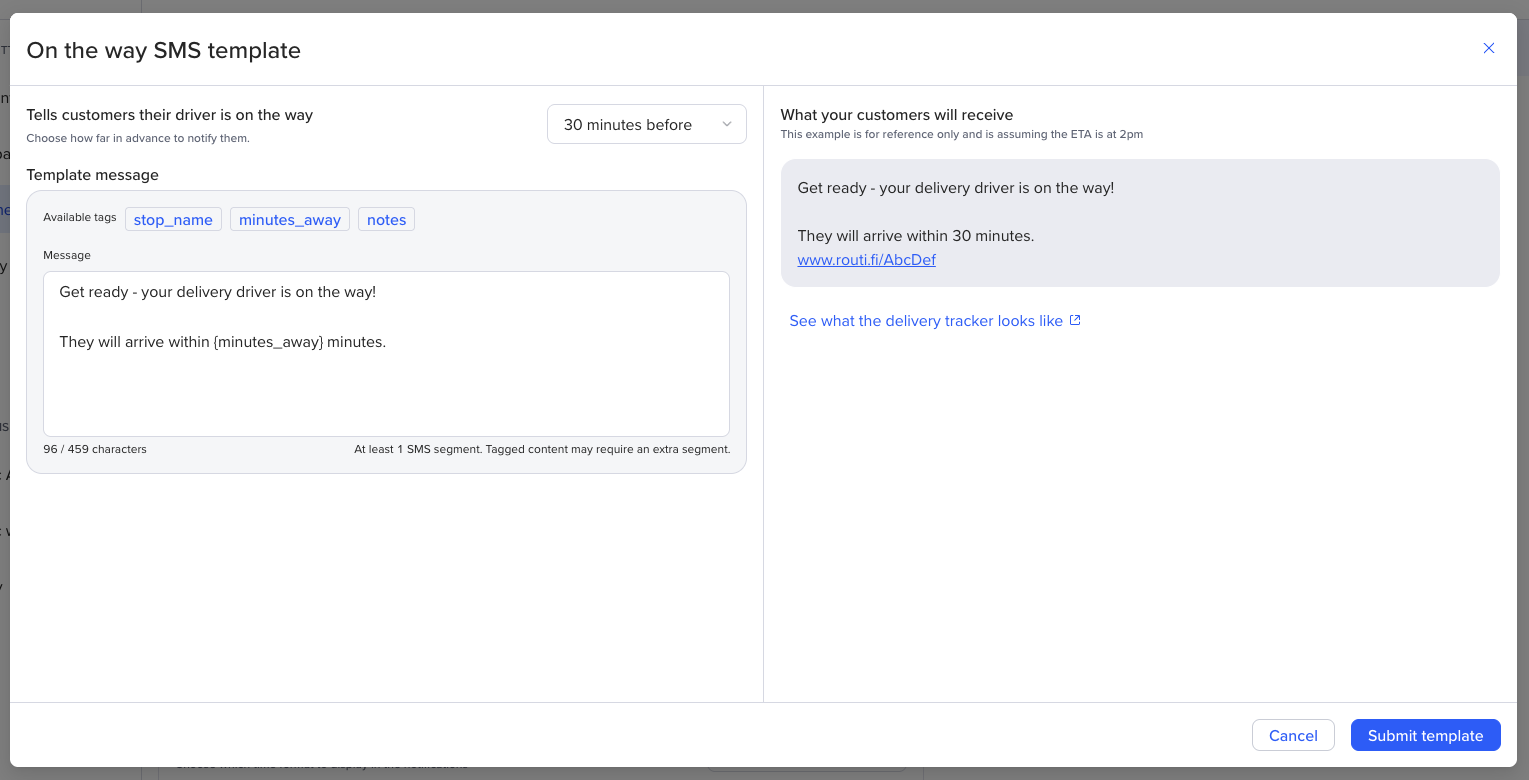
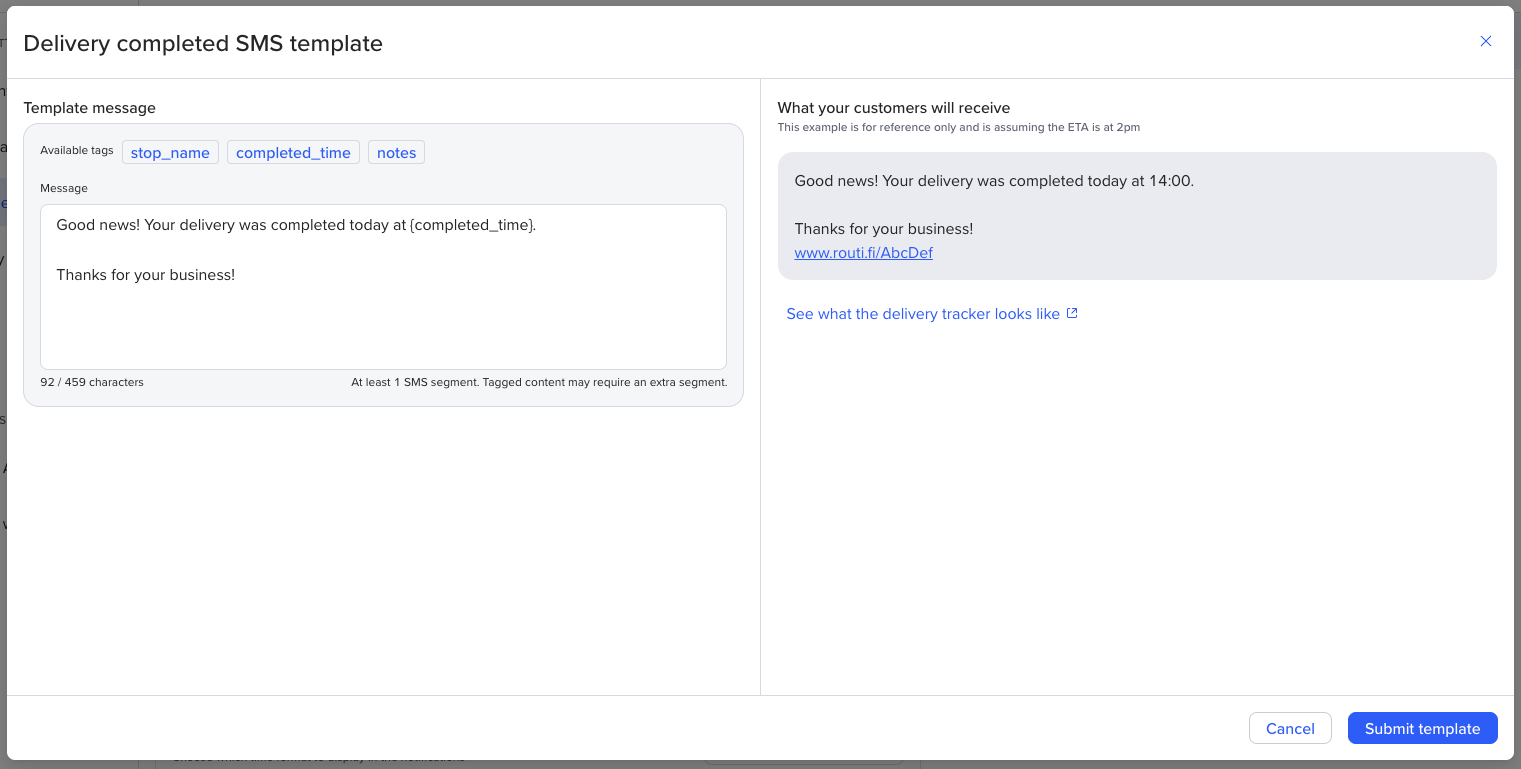
This notification confirms that a delivery has been successfully completed. It is sent when a driver marks an order Delivered in the driver app.
Note: If a driver delays confirming an order is complete, the notification will also be delayed.
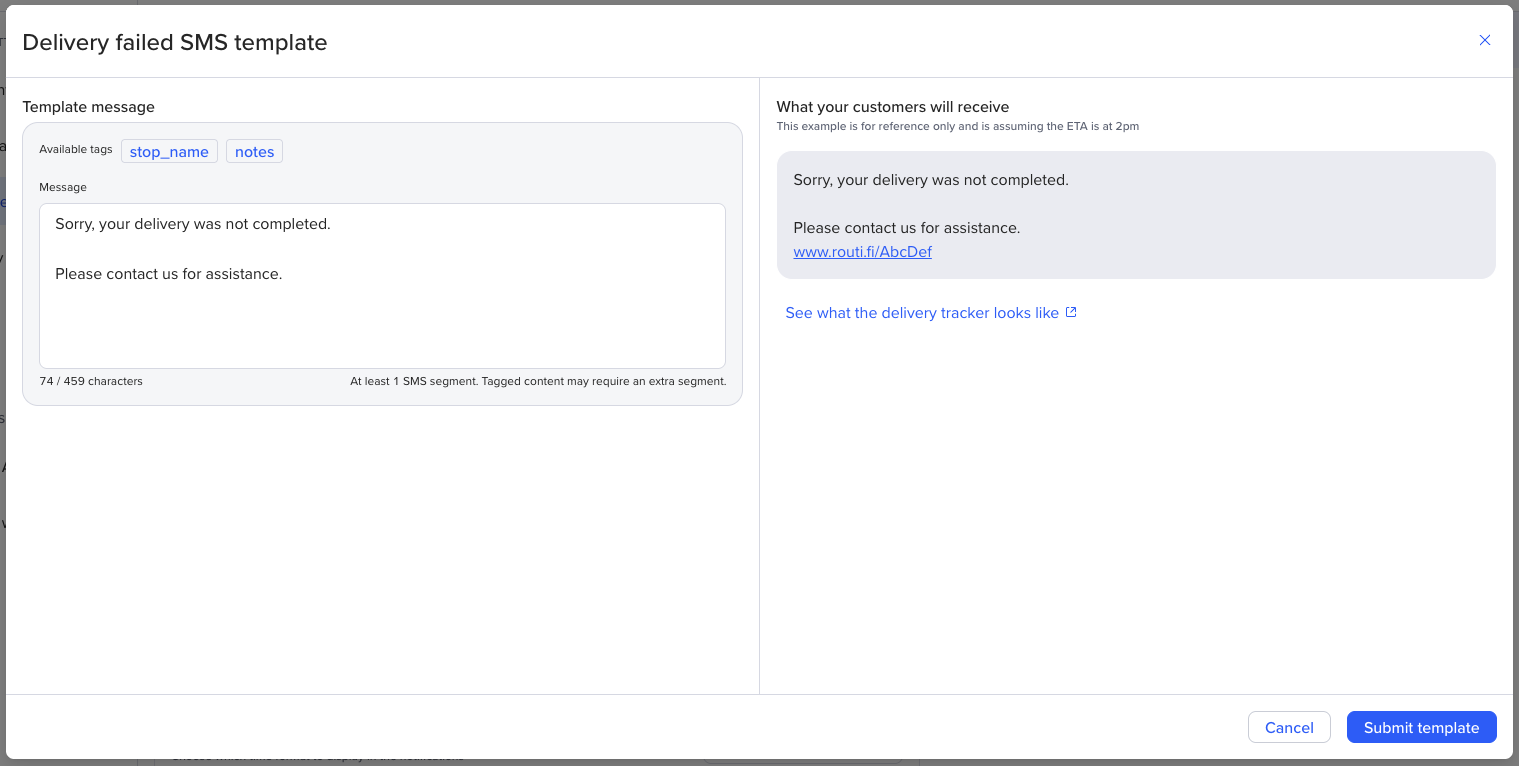
This notification lets your customers know if their delivery was not completed. It is sent when a driver taps SKIP in the mobile app, and selects a reason why the order could not be completed.
If a driver delays marking an order missed, the notification will also be delayed.
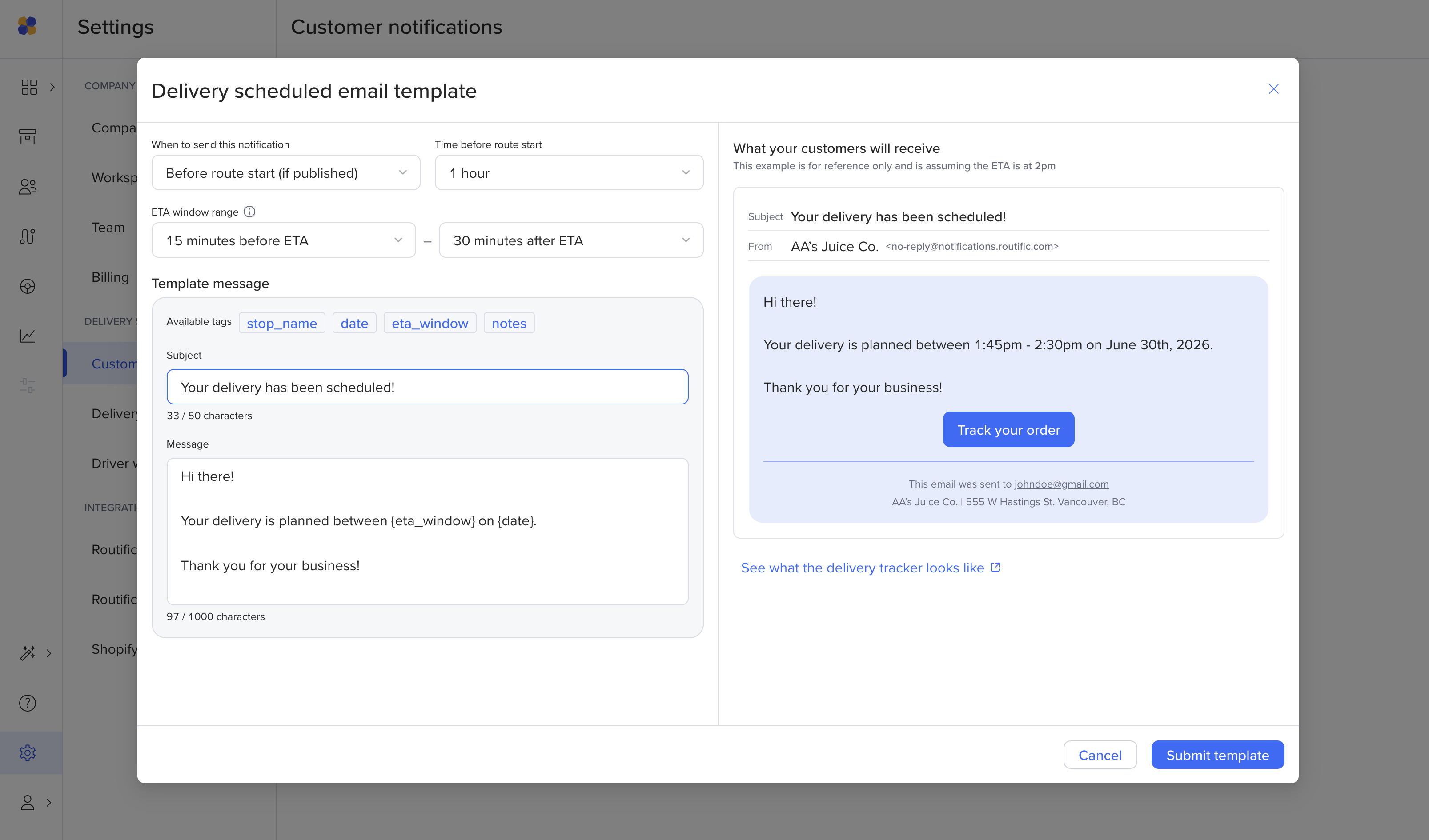
To customize your messages, click on any of the SMS event names.
You can edit the message on the left- hand side of the pop-up.
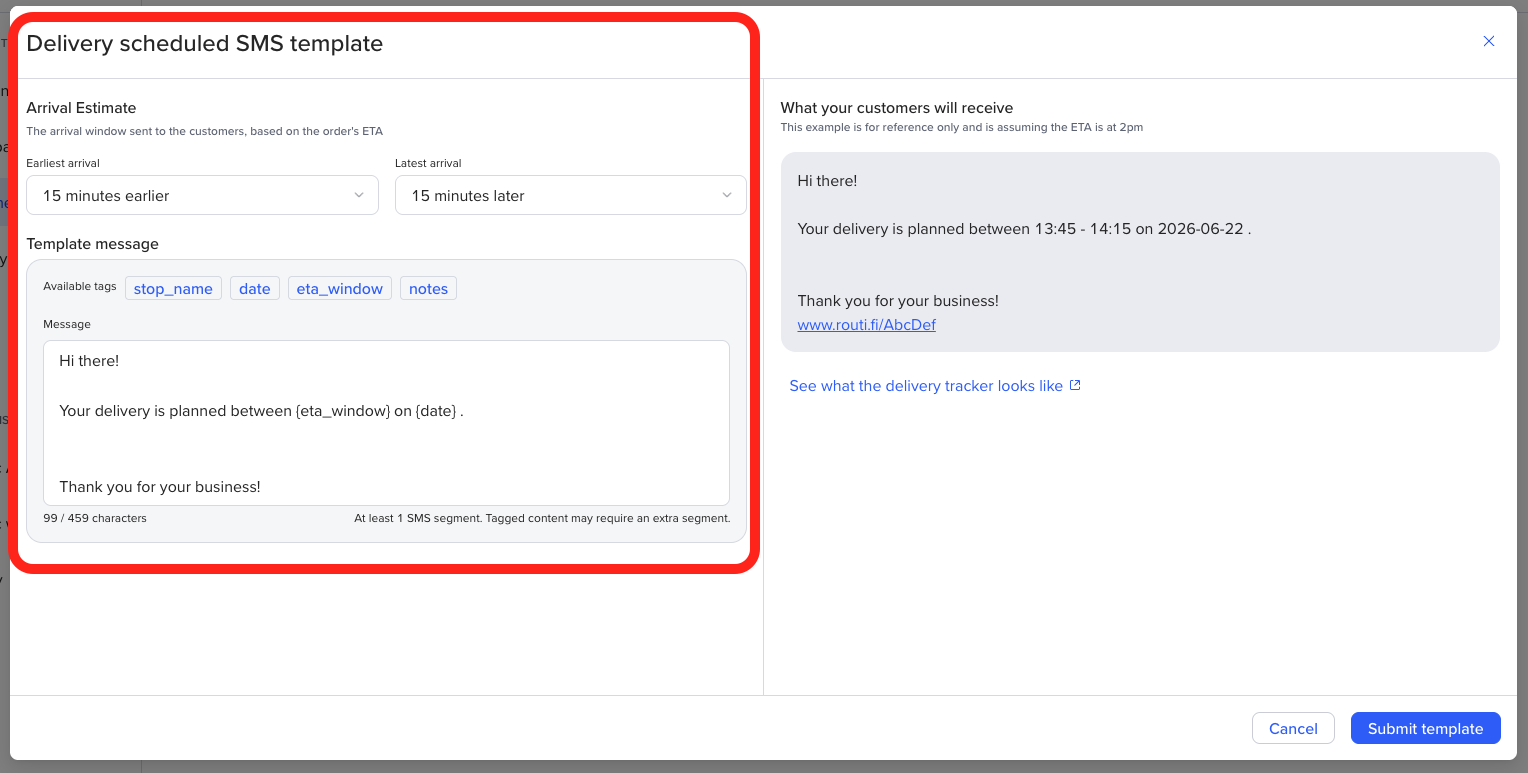
You can also add in tags to your messages to make them more dynamic by clicking on the tag you want, in the location to want it while editing your message.
You can find previews of your message on the right hand side while you are editing any notification.
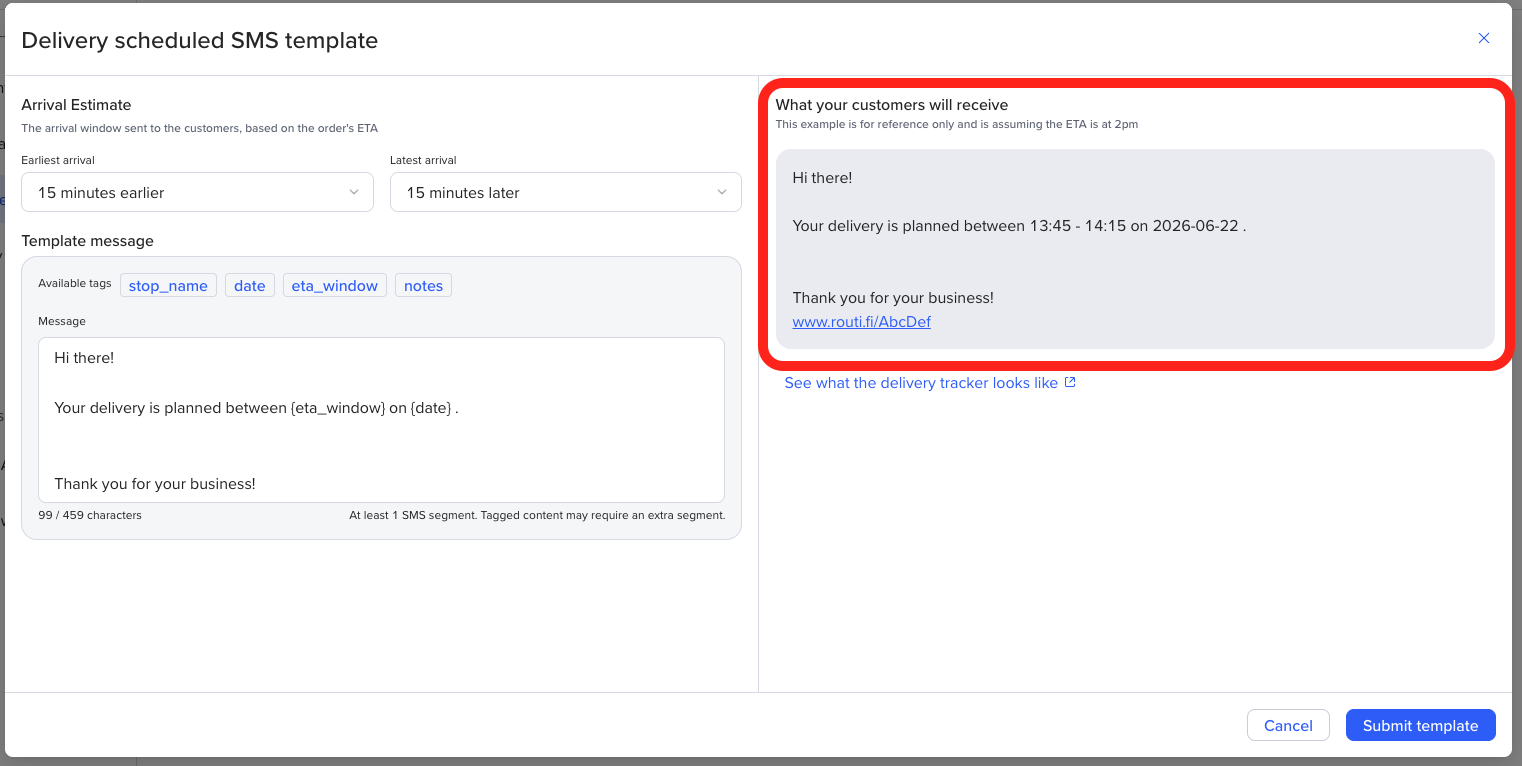
Every notification includes a link to our delivery tracker, which can be white-labeled with your company logo and brand colour. Go to Company Settings and select Delivery tracker.
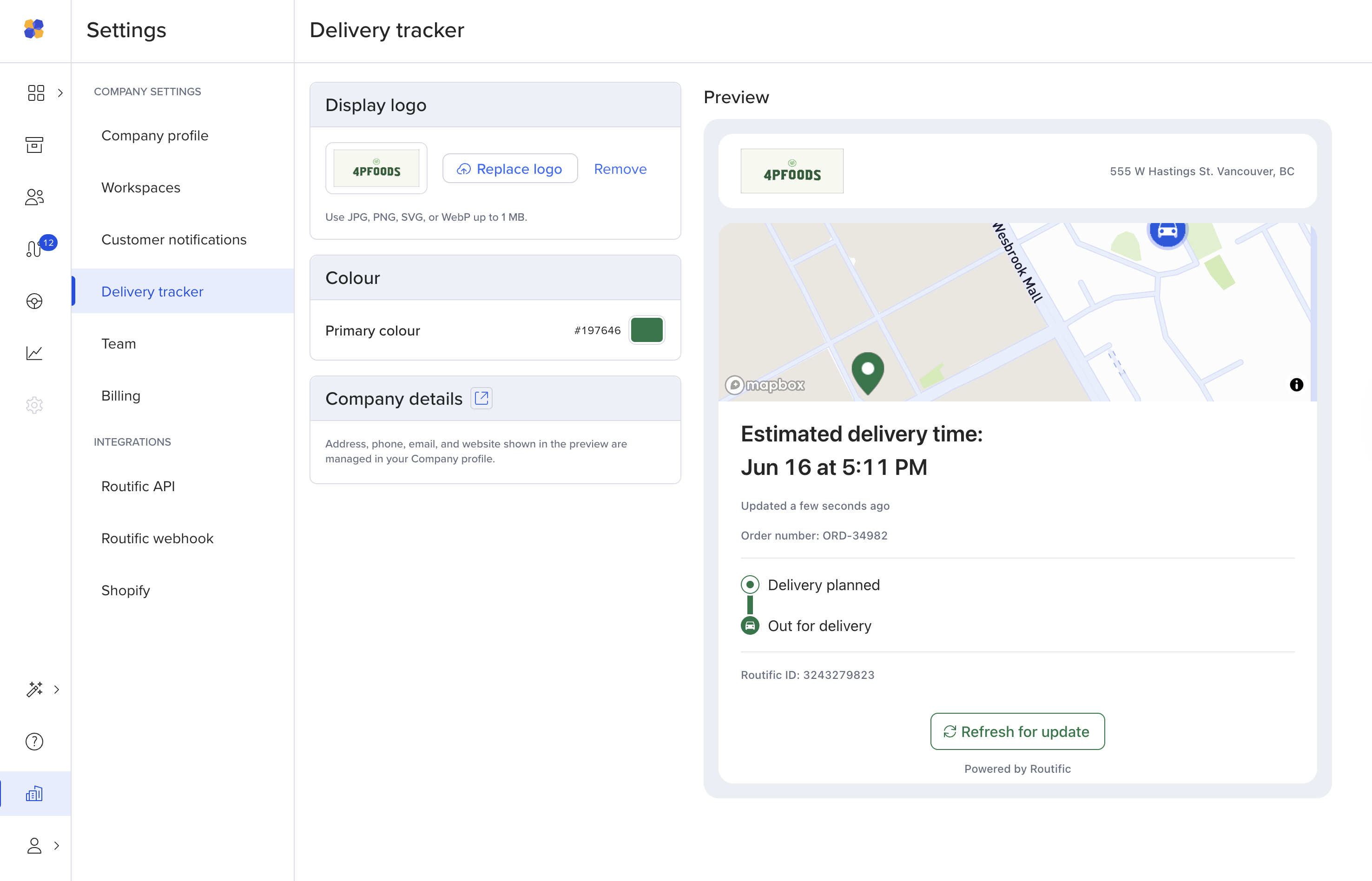
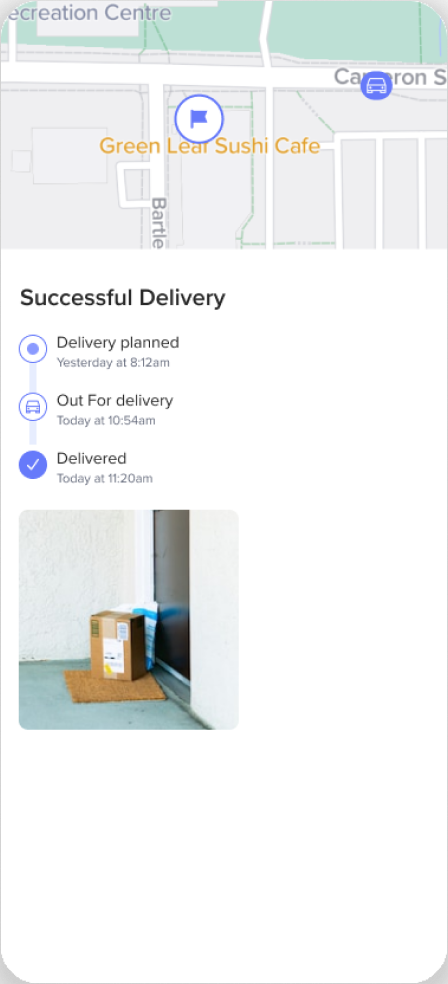
The tracker gives customers updated ETAs, and within 15 minutes of the driver’s expected arrival, customers will be able to watch the delivery driver approach, Uber-style. Customers can view their proof of delivery photos in the delivery tracker as well!
Your can also configure your preferred date and time formats under Configuration. You can choose between written, or numerical dates. You can also chose between AM/PM time, or 24-hour time.