
Unschedule orders
In order to bulk edit orders they must first be unscheduled and not part of scheduled route. Please see our guide below on how to unschedule orders.
How to unschedule orders
Move orders to another route or reschedule to another day
Select orders to edit
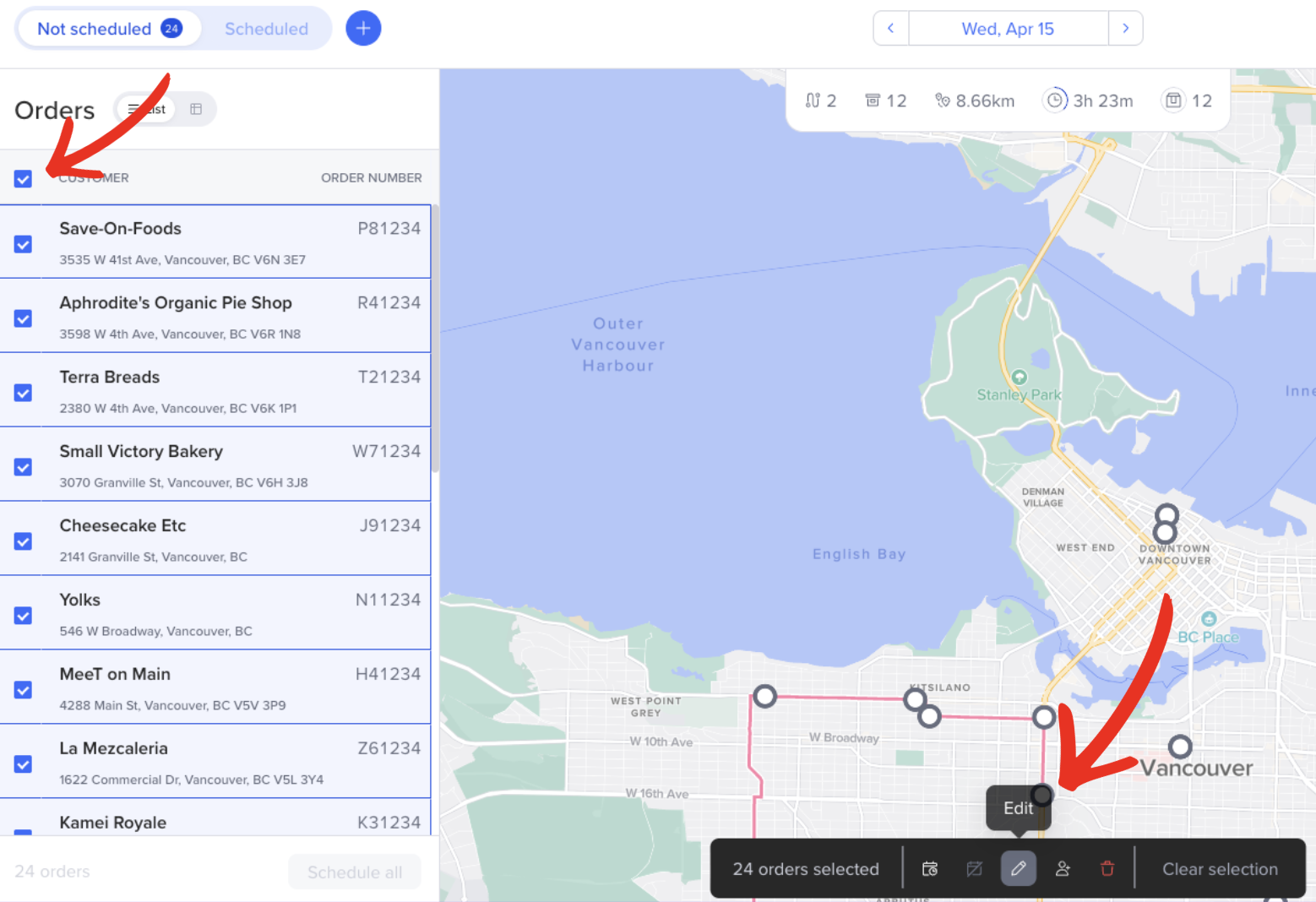
In the left-hand unscheduled tray, select the orders you want to edit, or select them all, whichever you need.
Once you have them selected, click the pencil icon in the black menu at the bottom of the screen.
Make your changes
Routific allows bulk editing 4 different fields:
Delivery date: Which date the orders need to be scheduled for)
Time-window: When the orders need to be delivered
Duration: How long each order takes to be completed by the driver)
Load: The number of units associated with an order.
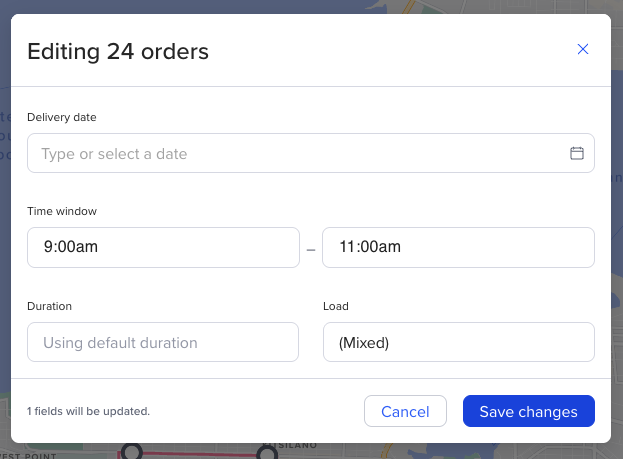
*Please note that custom fields cannot be added or edited in bulk with this feature.
Save your changes
Once you have made all the edits you need, simply click Save changes.
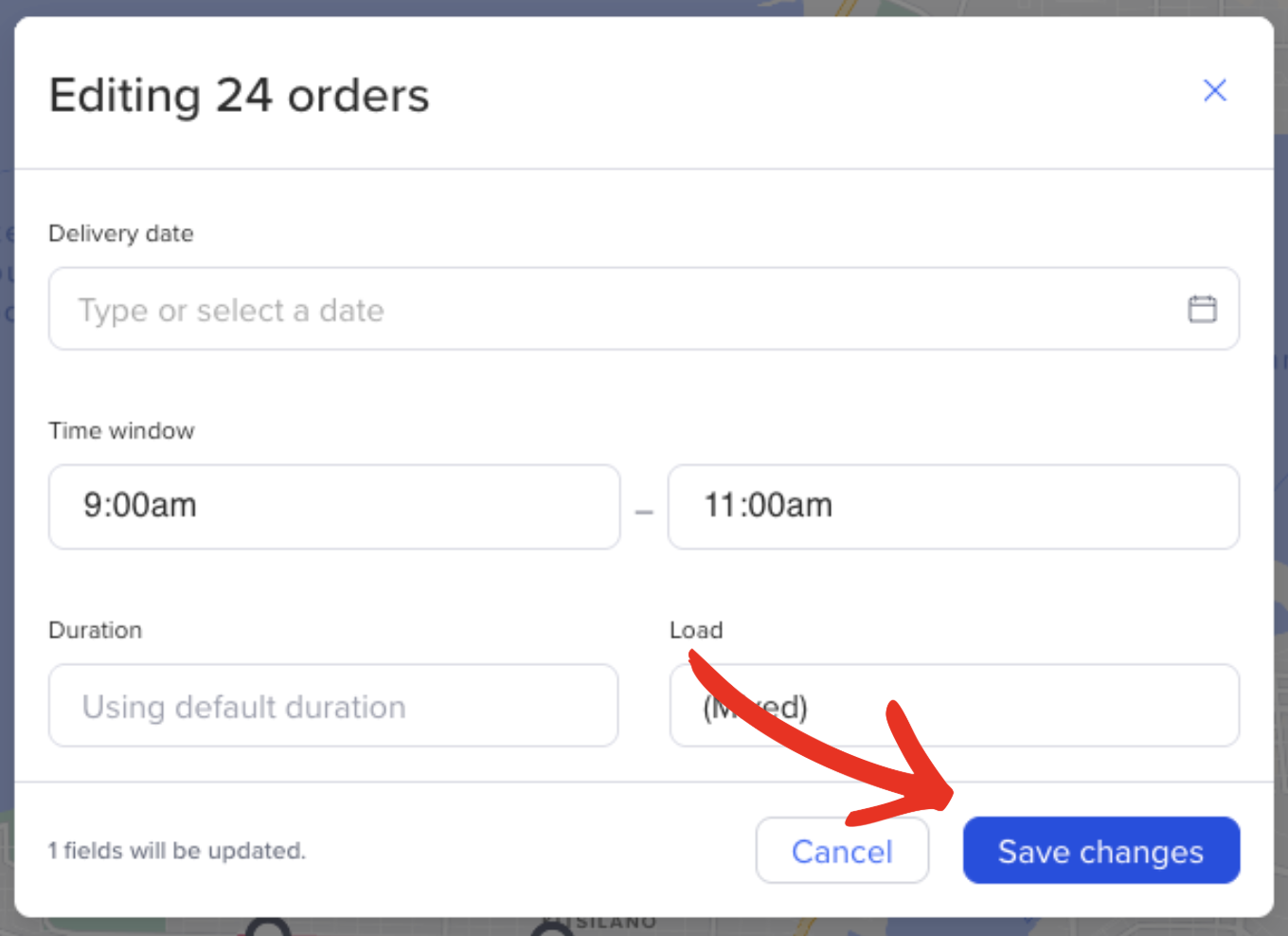
Once your changes are made, you will see all of your selected stops in the unscheduled tab, however their details will have been updated as per your edits. You are now able to reschedule your stops with your regular scheduling flow!