
Click the route you want to edit, either in the timeline or on the map.
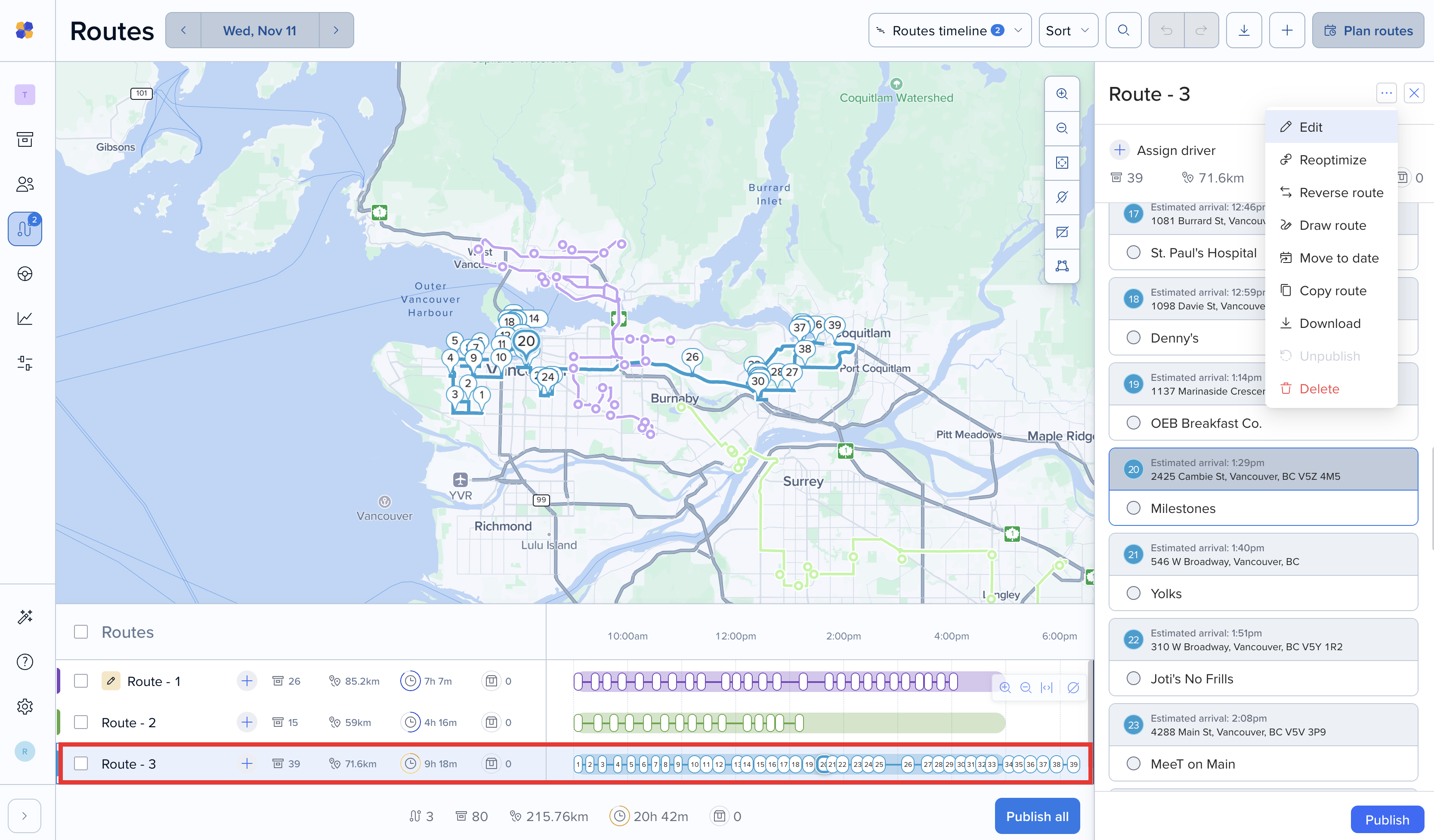
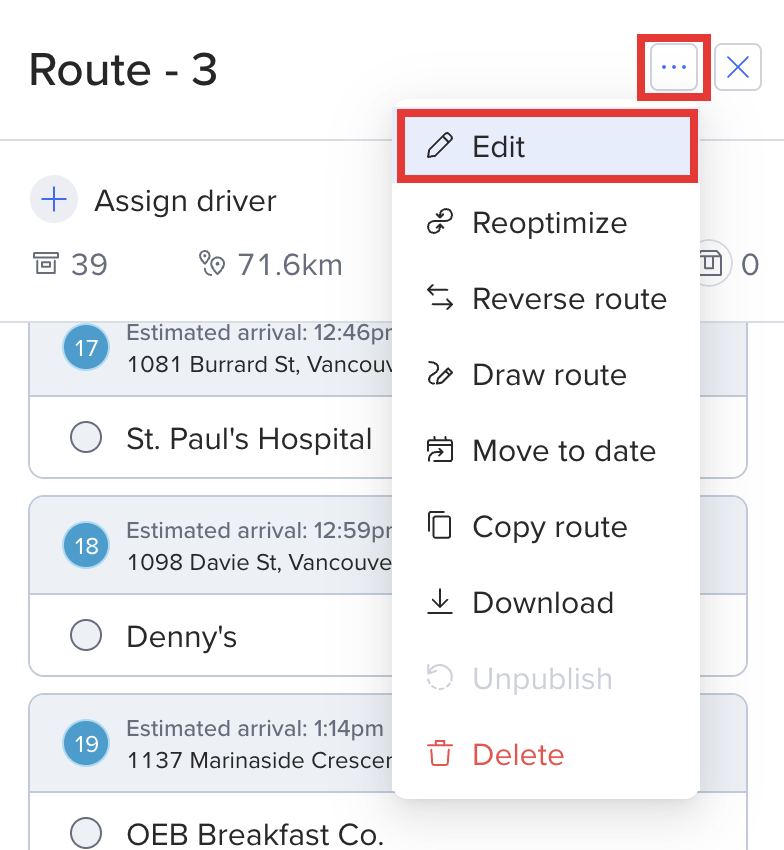
Click the three dots (…) in the top right corner of the route panel and choose Edit.
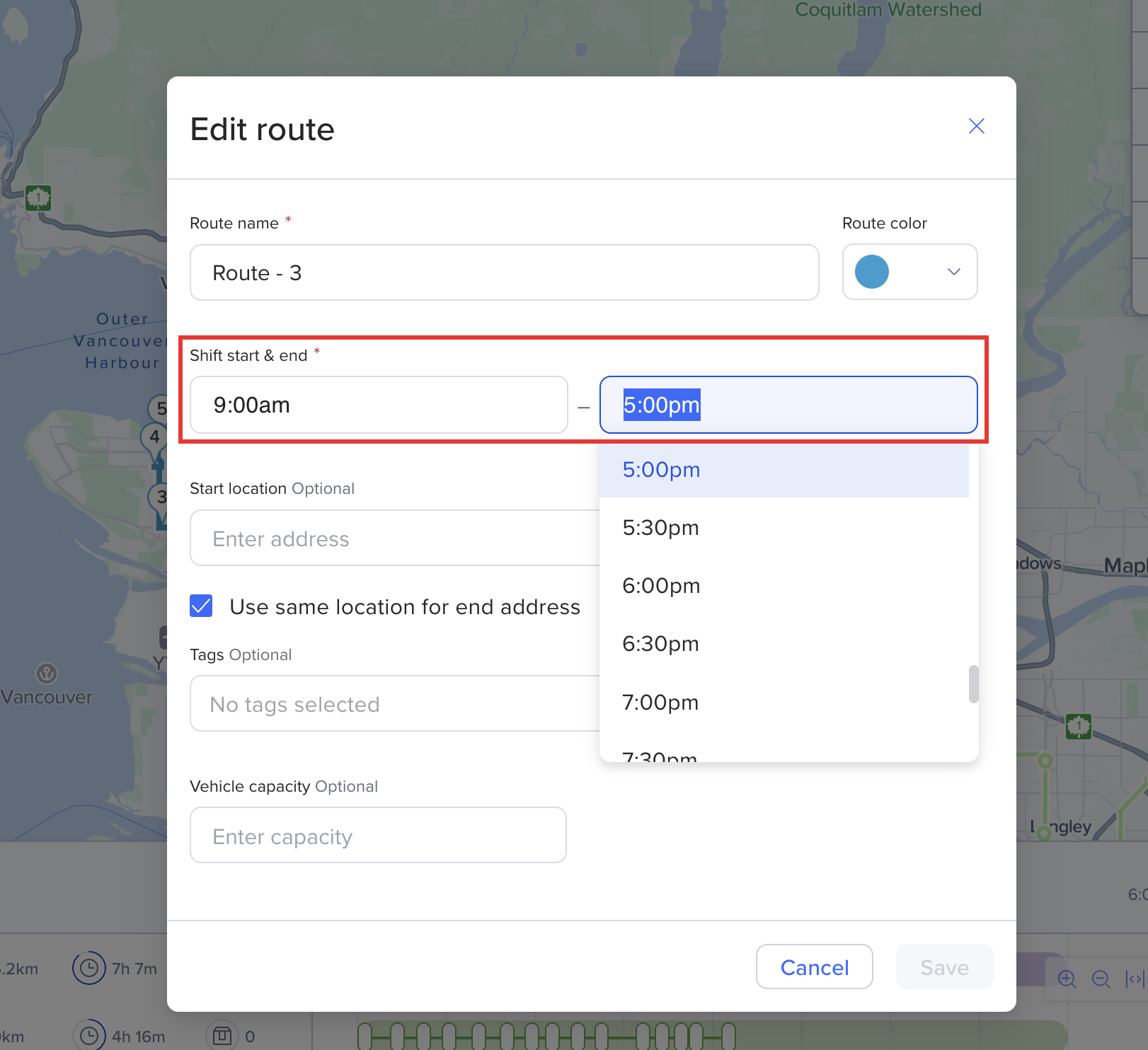
Change the route details, then save your changes.
Edit a published route
You can keep editing a route after you publish it, right up until it's finished. What you can change depends on how far along the route is:
Any time until the route is finished: route name, color, tags, capacity, end location, and shift end time.
Until your driver starts the route: start location and shift start time.
Until you publish: the start date. To move a published route to another day, unpublish it first.
A new route name updates for your driver right away. Changes to times, locations, tags, or capacity recalculate the route's delivery times, and a yellow pencil badge appears next to the route. Click Publish to send them to your driver.
Once your driver starts the route, its times update automatically as they go.