
Traffic at 8 a.m. isn’t traffic at 11 a.m. A trip across a bridge during rush hour can take twice as long as the same trip mid-morning.
With predicted traffic, Routific estimates travel times based on when your driver will be on the road, not just where they’re going. We use machine learning trained on real-world travel patterns to predict how long each drive will take at each hour of the day.
How it helps
More realistic ETAs. Route durations reflect what drivers actually experience on the road.
Smarter stop order. Routific can sequence stops to work with traffic, like crossing busy corridors outside of peak hours.
Fewer surprises. Less overtime and fewer missed time windows.
Your routes may look a little different once it’s on. Some may look longer during rush hour. That’s traffic time that was always there, now showing up in your plan.
How to turn it on or off
If your account is part of the pilot, predicted traffic is on by default. You can switch it off, or back on, in each workspace.
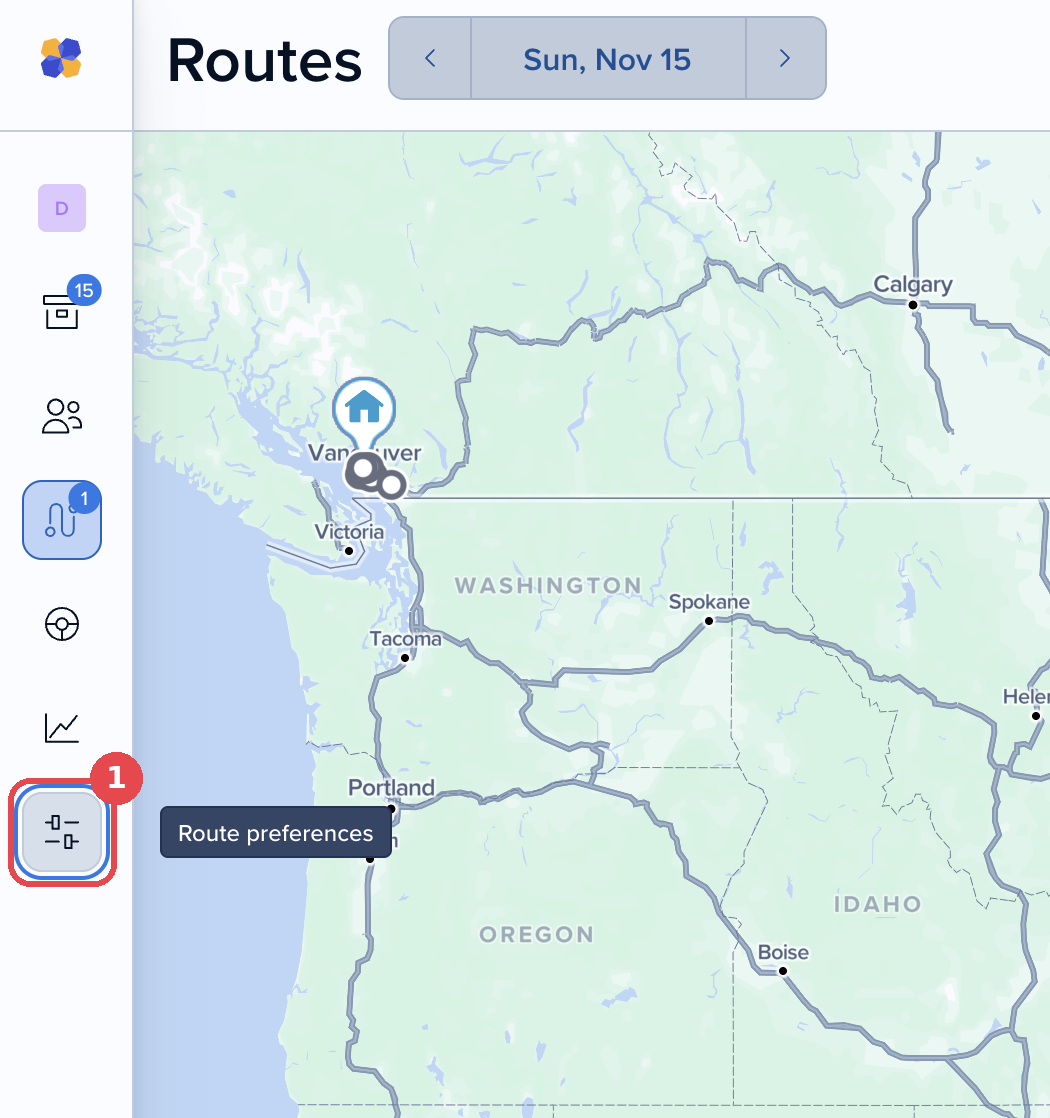
1. Click Route preferences in the left sidebar.
2. Open Optimization preferences.
3. Scroll to Order & traffic estimation, switch Predicted traffic on or off, then click Done.
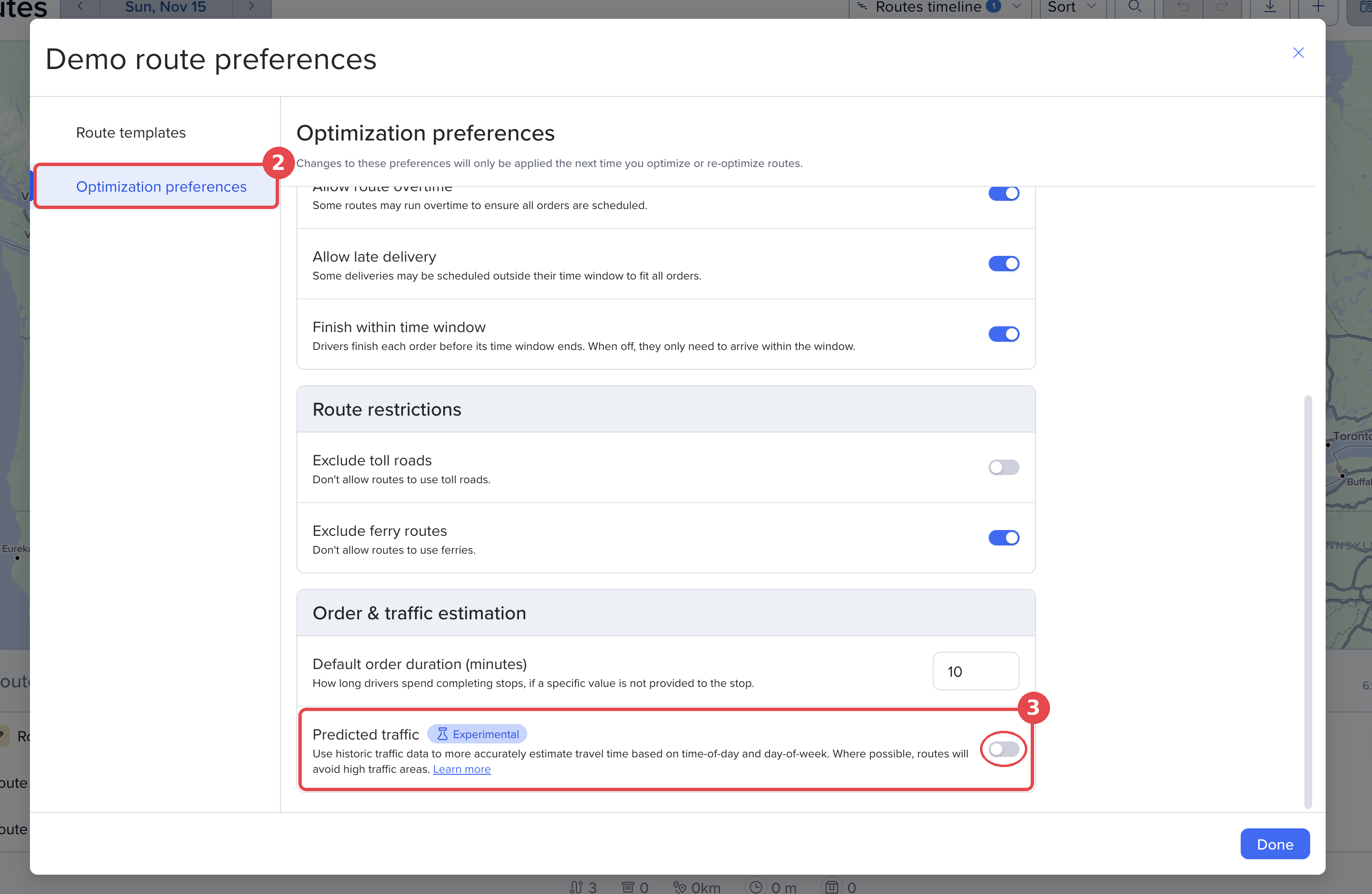
It applies the next time you optimize or re-optimize routes.
Tip: If you lowered driver speeds to make up for traffic, set them back to normal. Predicted traffic now accounts for it, and lowered speeds will make your ETAs too long.
Questions or feedback?
We’re running a pilot with a small group of customers in Toronto, with more regions to follow. If something looks off, or you want to join the pilot, chat with us in the app or email [email protected].