A driver break is configured on the driver, not on a specific route. Once it's set, the break behaves like other driver-level settings (similar to driver speed) — it's applied automatically to any route that driver is assigned to.
Key things to know about how breaks are planned:
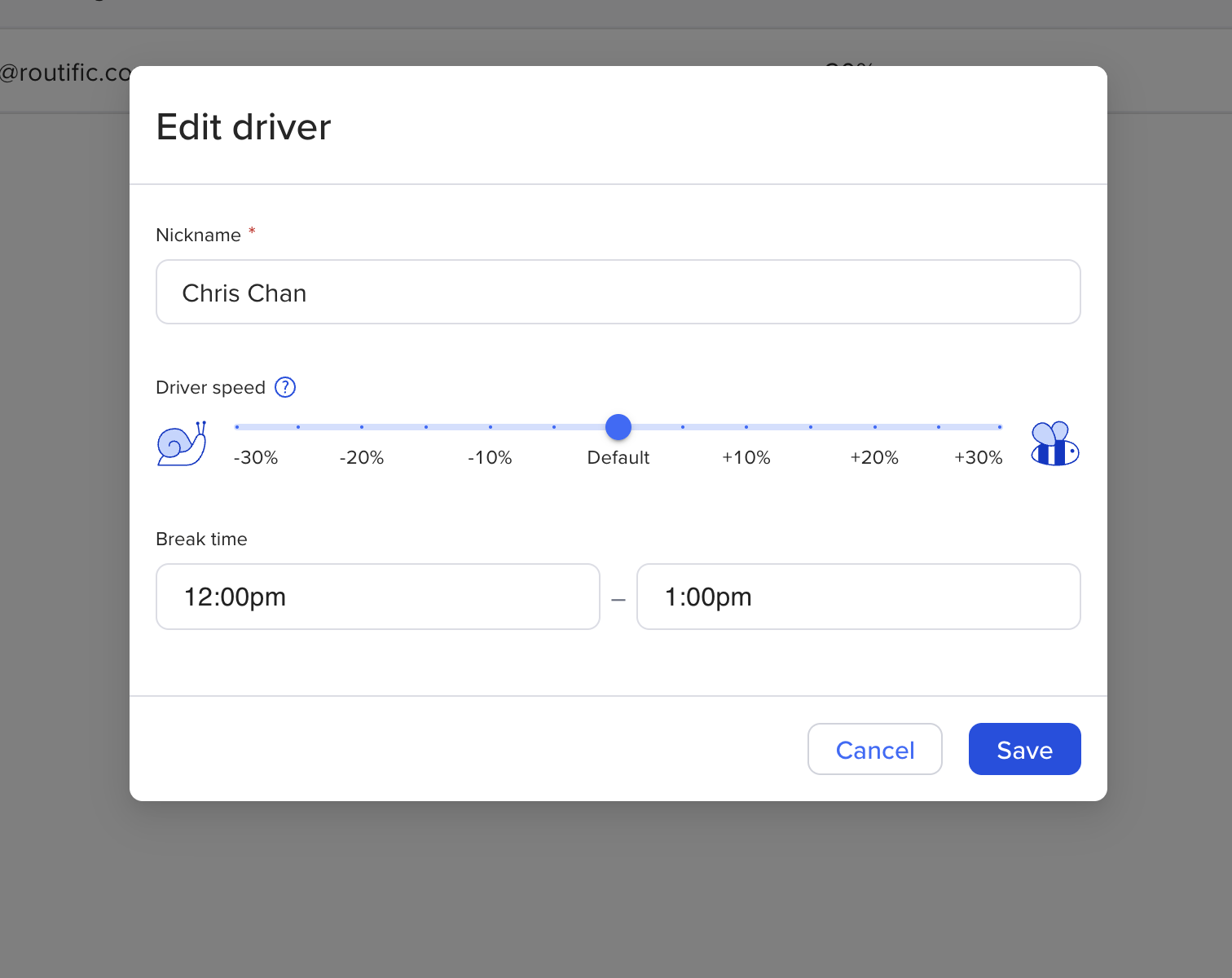
Breaks have a fixed start and end time. Duration is calculated automatically from those two times.
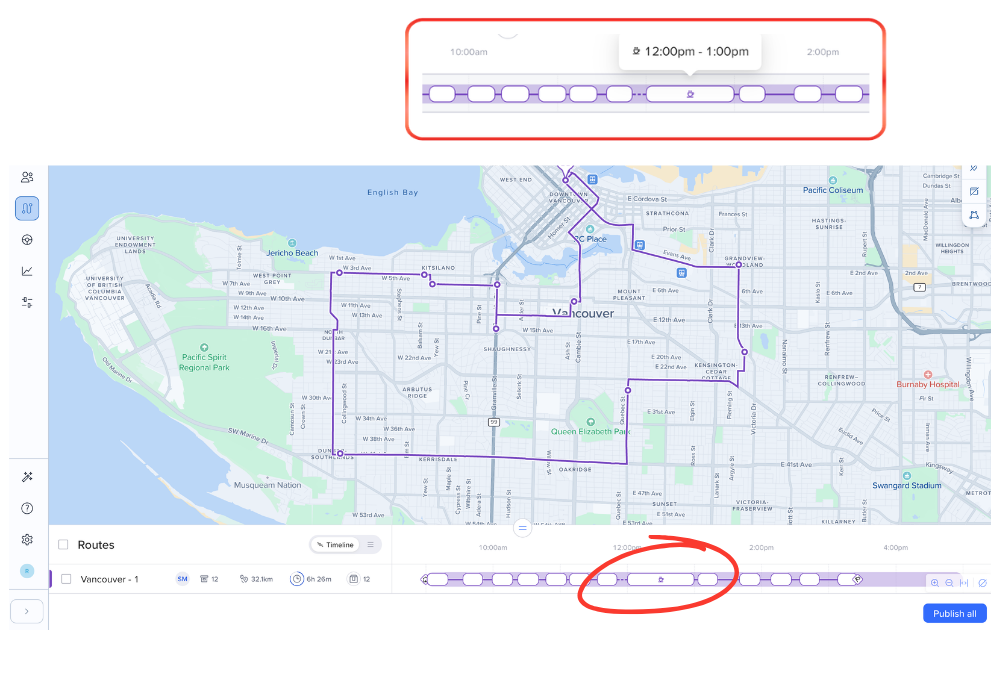
Breaks don't have a location. The break appears in the route timeline, but Routific doesn't assign it to a stop or address.
Breaks can interrupt travel, but not service. If a break falls during a drive between stops, the route splits around it. It won't be scheduled in the middle of a stop.
The break time stays fixed. If the driver runs early or late, the stops around the break move — the break itself stays anchored to the time you configured.
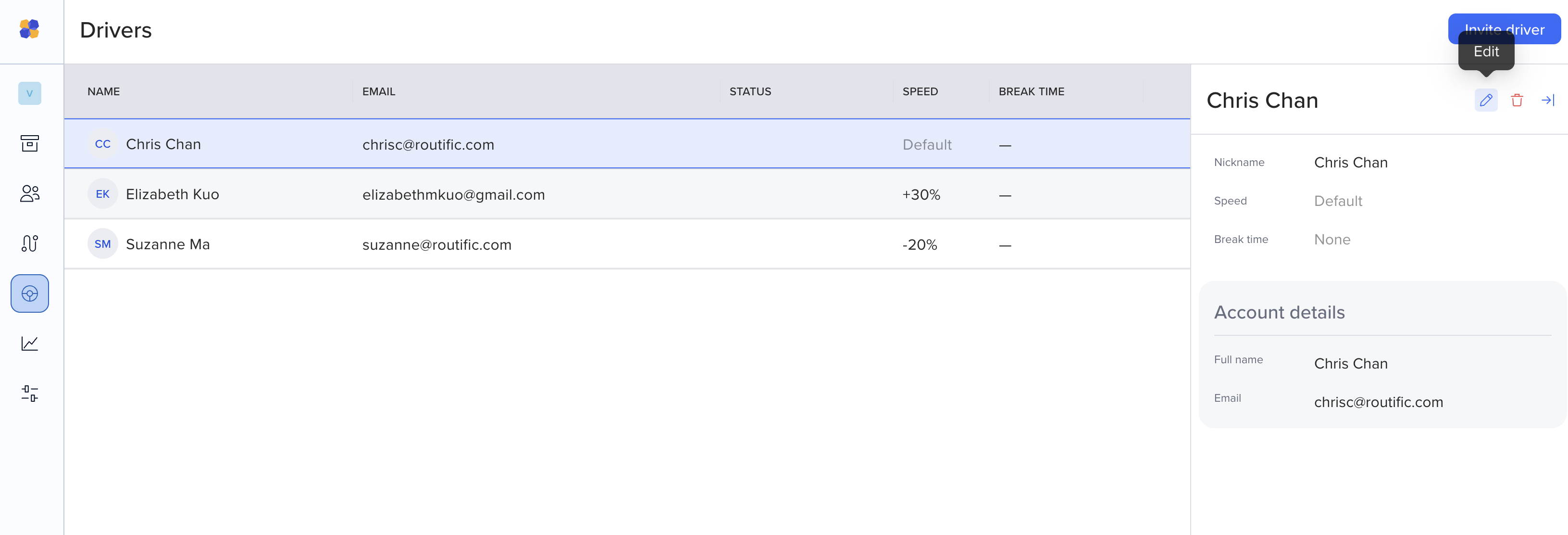
Go to the steering wheel on the left and click on your driver's profile. Click Edit.
Add a break with a start and end time (for example, 12:00 PM–1:00 PM).
Save the driver profile.
From then on:
If a route doesn't have a driver assigned yet, Routific optimizes it without a break.
If you assign a driver before optimizing, Routific factors their break into the optimization.
If you assign a driver after optimizing, Routific inserts the break into the existing route and adjusts the timing of the remaining stops — the stop sequence stays the same.
If you want Routific to find a better sequence with the break included, re-optimize the route after assigning the driver.
Timeline and list view:: dispatchers see the break reflected in route timing and ETAs.
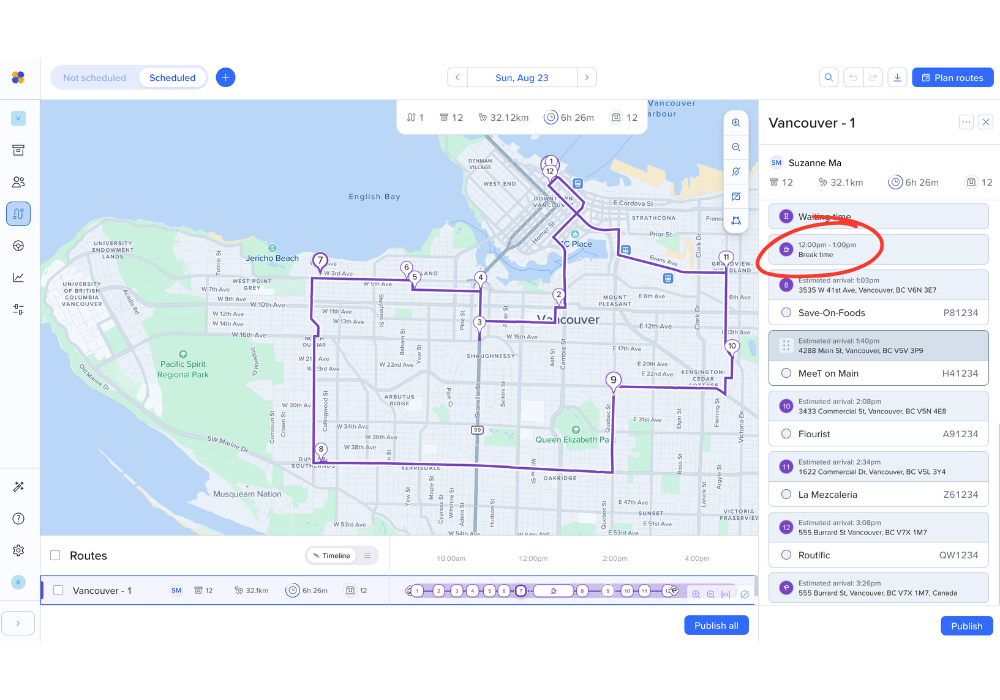
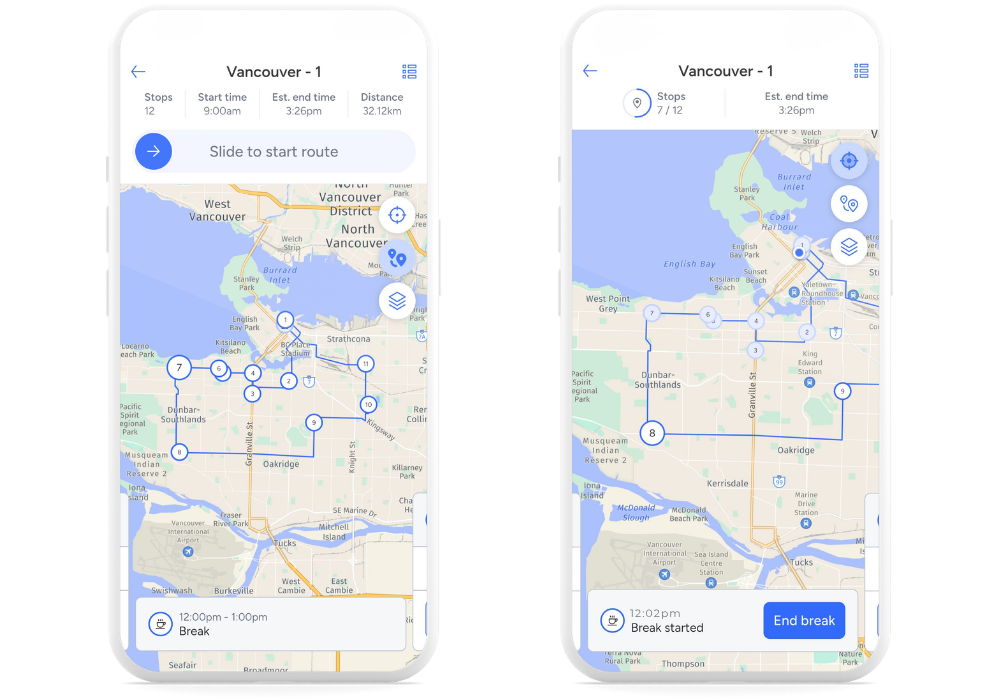
Driver mobile app: the break appears in both the list view and the map view, alongside stops.
CSV export: the break appears as its own row, without a stop number or location.
Drivers can mark when they actually start and end their break from the mobile app. This helps keep ETAs accurate if the actual break timing differs from what was planned:
When a driver starts their break, the ETAs for remaining stops shift based on the actual start time.
When a driver ends their break, ETAs shift again based on the actual end time.
Customer notifications go out based on the updated ETA.
For example, if a break is planned for 12:00–12:30 but the driver actually starts at 12:08 and ends at 12:42, Routific uses those actual times to recalculate the rest of the route — rather than waiting until the driver reaches the next stop to correct the schedule.
Breaks are fixed to a specific start and end time — there's no support yet for flexible windows (for example, "a 30-minute break sometime between 12 and 2").
Drivers can't currently delay, skip, or move a scheduled break from the app.
Breaks aren't tied to a location, so ETA calculations don't account for travel to or from a specific break spot.
If your workflow needs any of the above, let us know at [email protected] — it helps us prioritize what to build next.