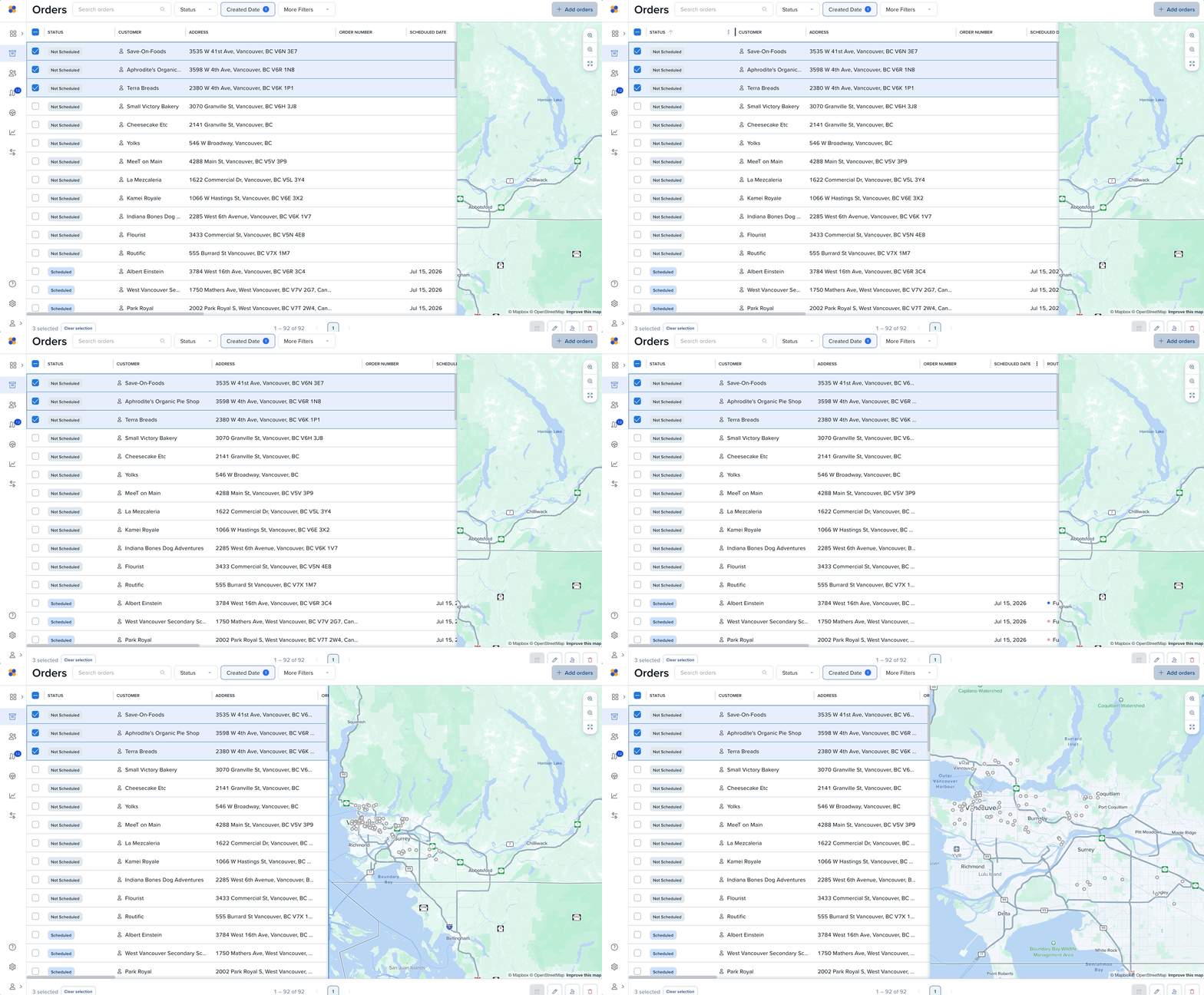
The orders page is built for the everyday work of managing orders — finding exactly what you need and acting on it, whether that's one order or a hundred.
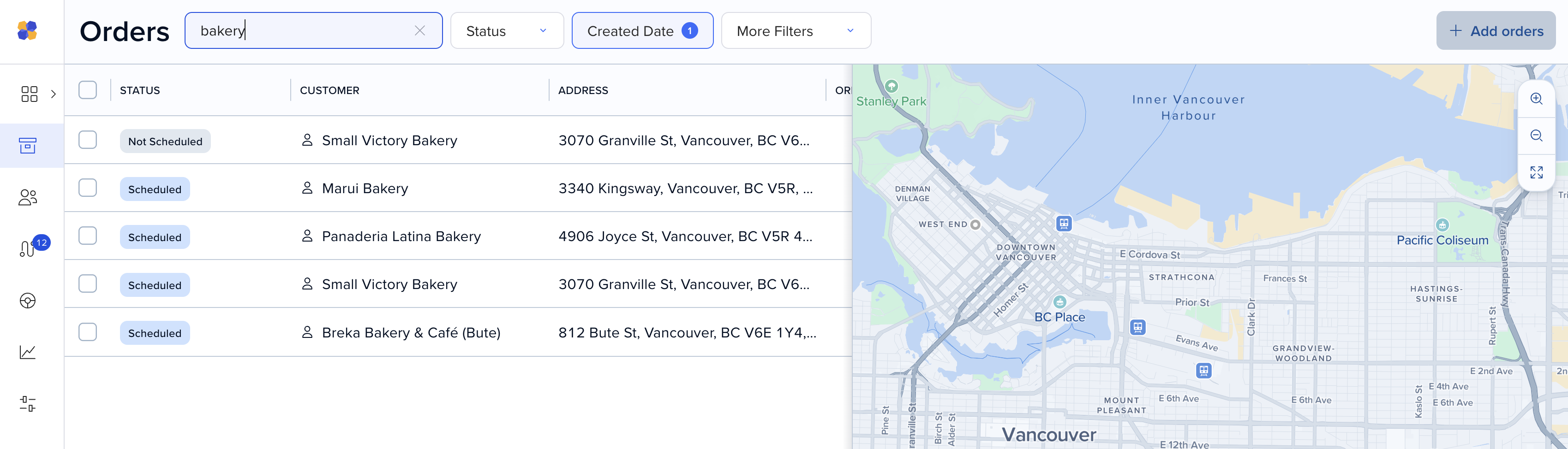
Search looks across tags, custom fields, delivery instructions, and driver notes — and shows you every matching result. Order details live in a table alongside the visual context of a map, and the table surfaces what you need at a glance, including scheduled date, custom fields, and order notes.
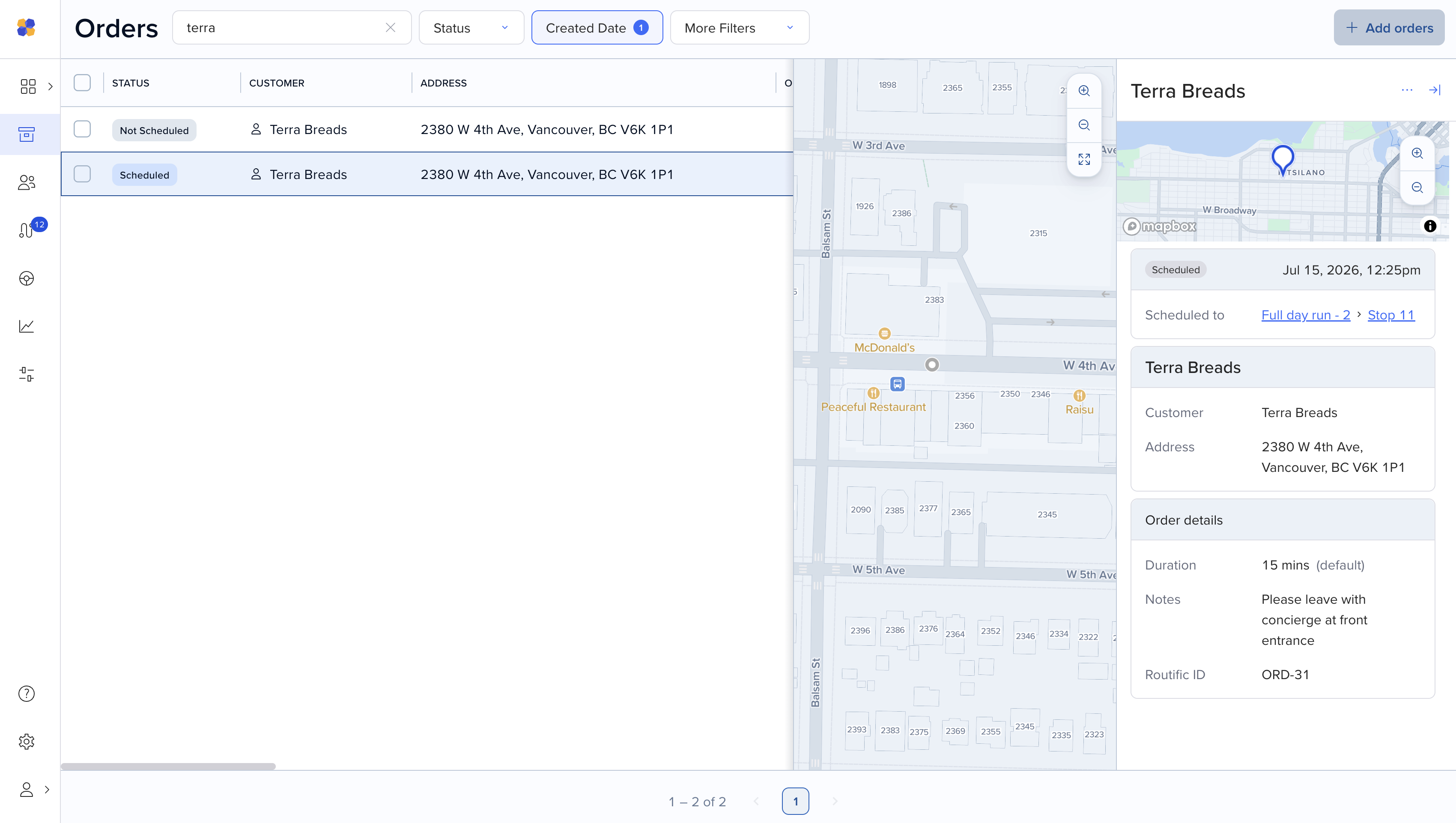
Filter by:
Status
Created date
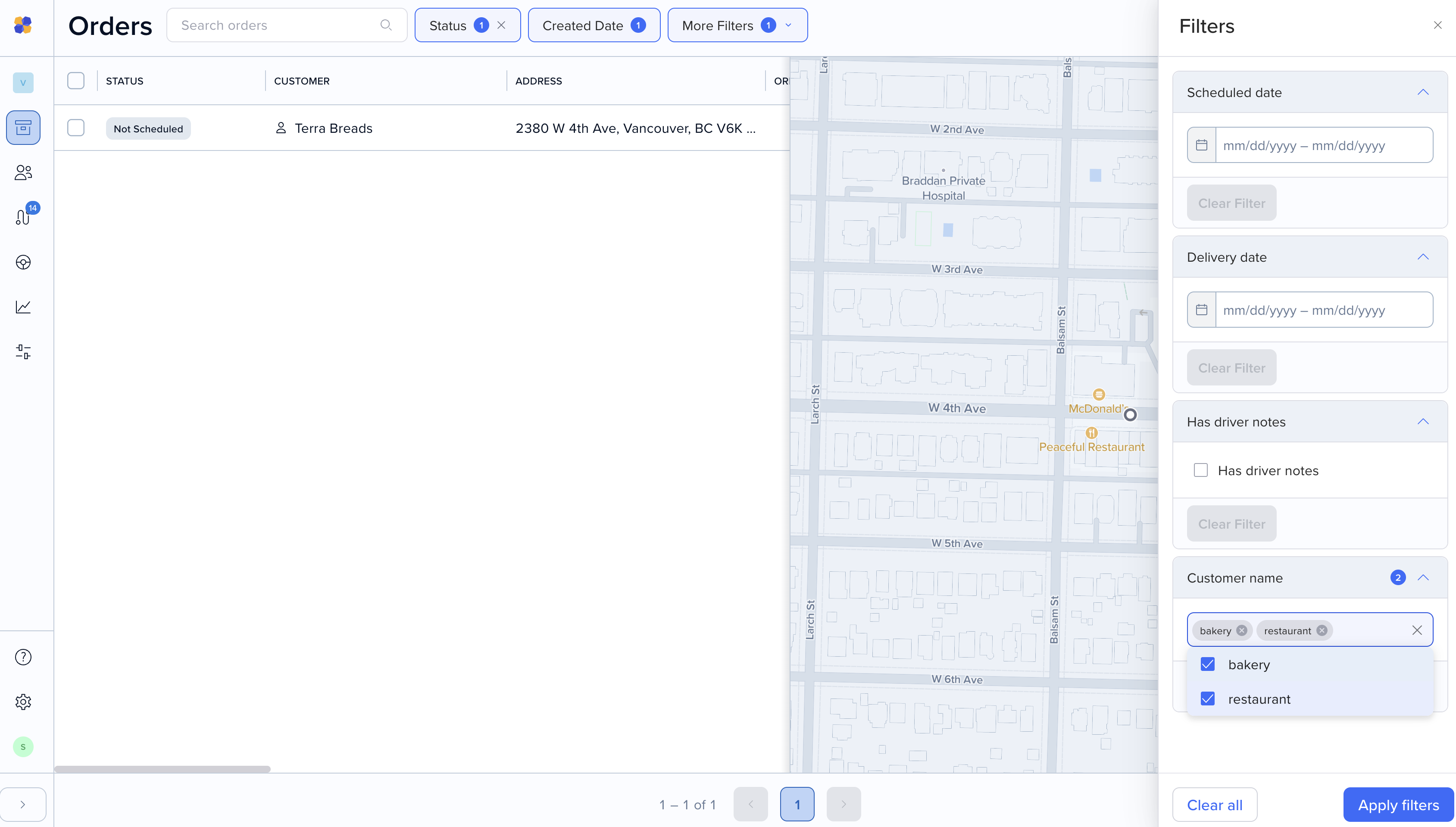
Customer name
Scheduled date
Delivery date
Whether a driver left a note
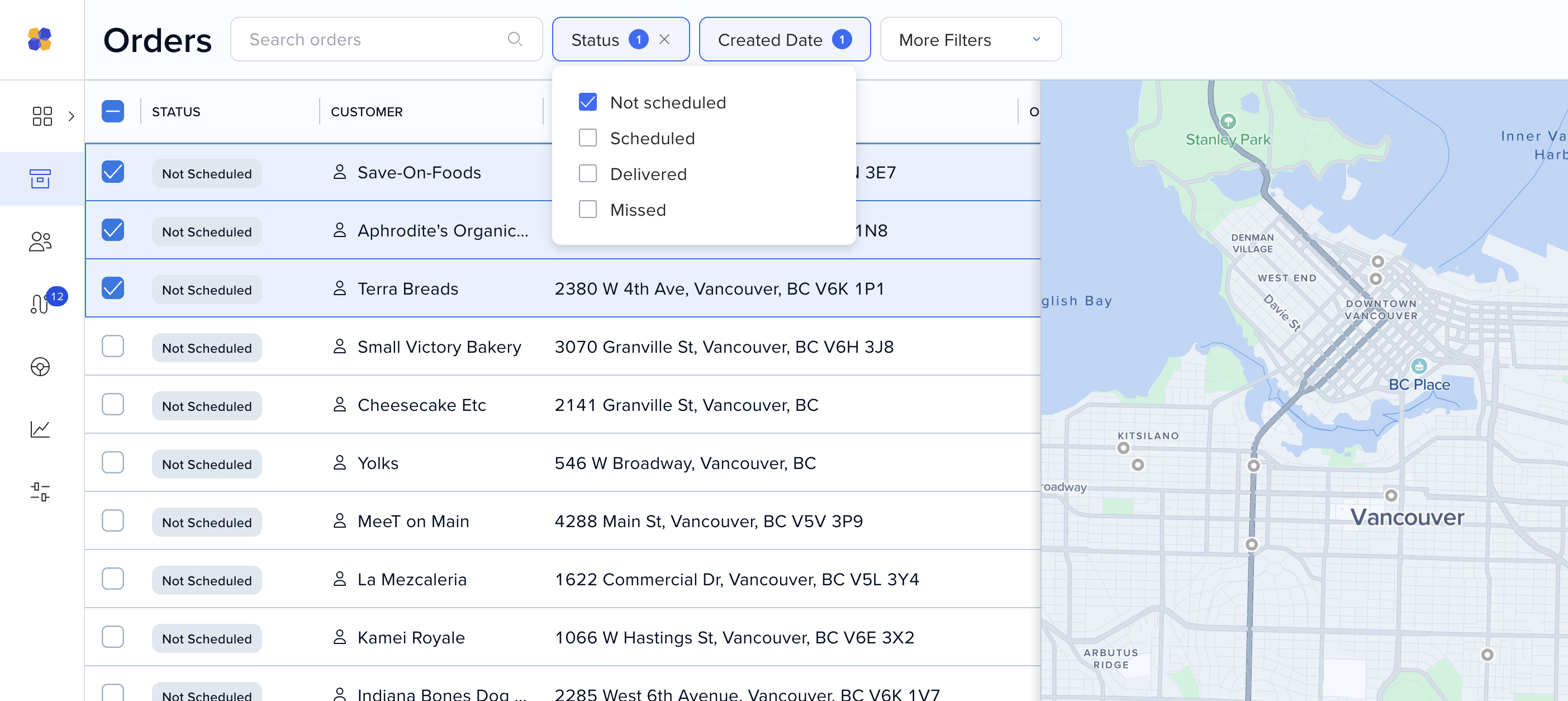
To filter by order status, click on Status and choose between Not scheduled, Scheduled, Delivered or Missed.
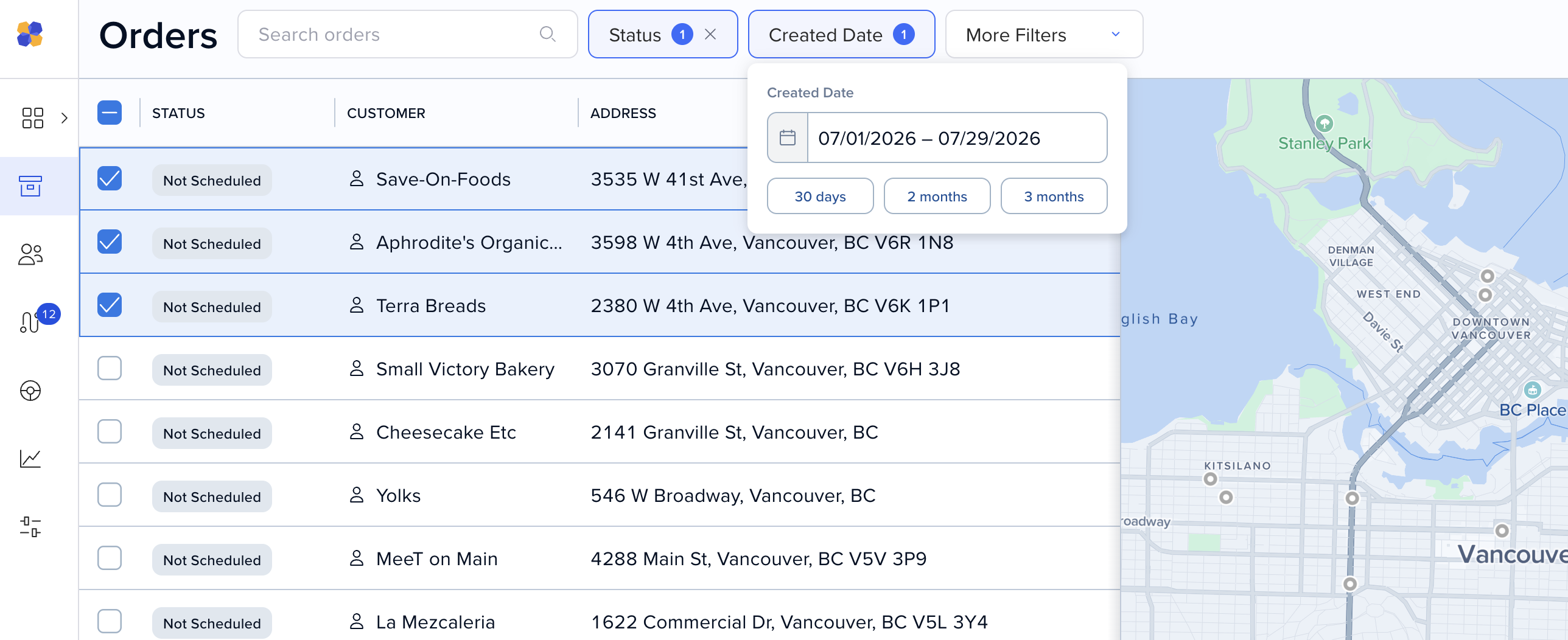
To filter by date order was created, click Created date and select a time frame.
To filter by a customer’s name, click on Search orders and type in your keyword.
You can also click on More filters and search multiple terms under Customer name.
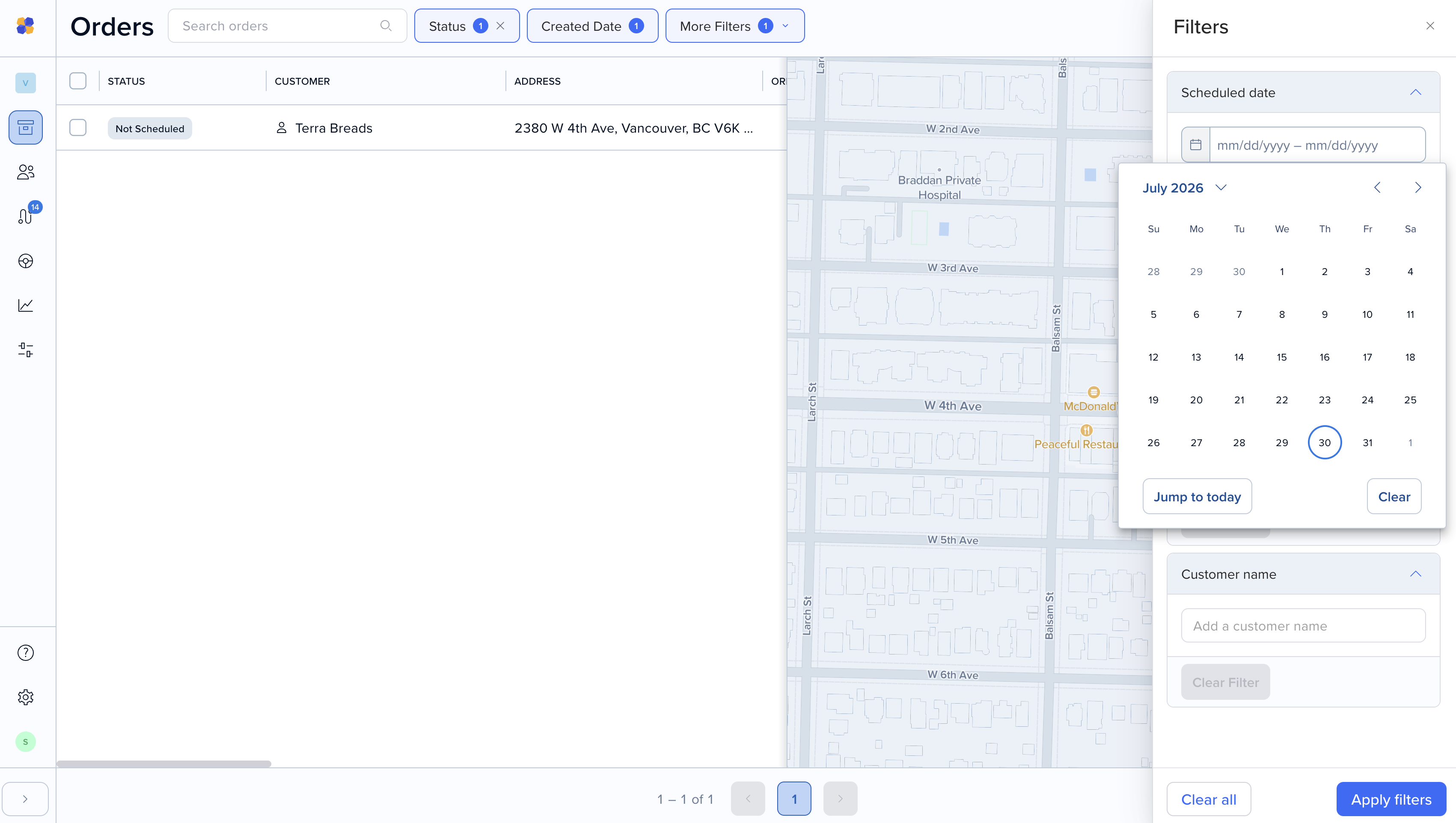
To filter by scheduled date, click on More filters and select from the calnedar under Scheduled date.
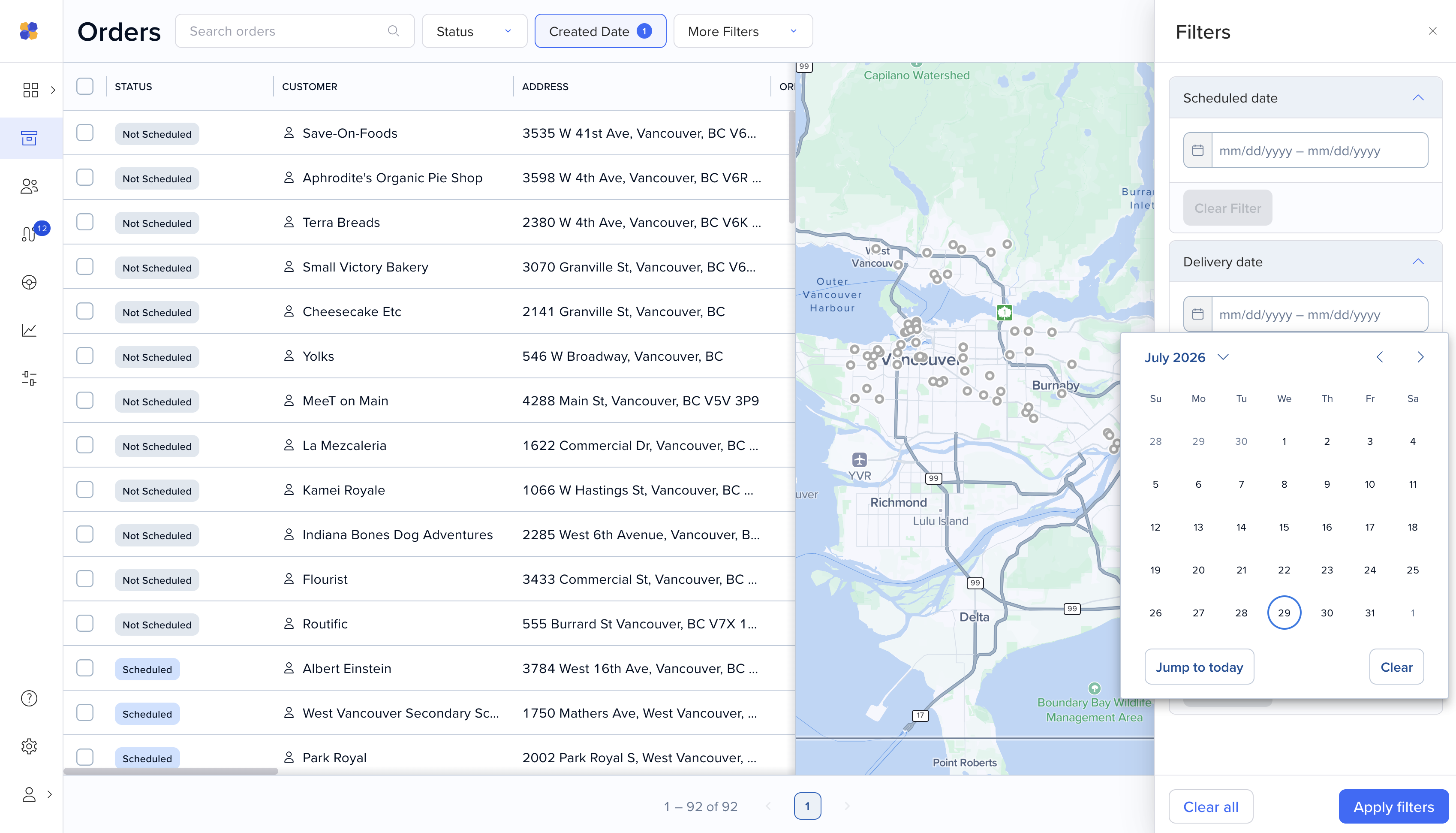
To filter by a delivery date, click on More filters and select from the calendar under Delivery date.
To filter by whether an order has driver notes, click on More filters and select Has driver notes.
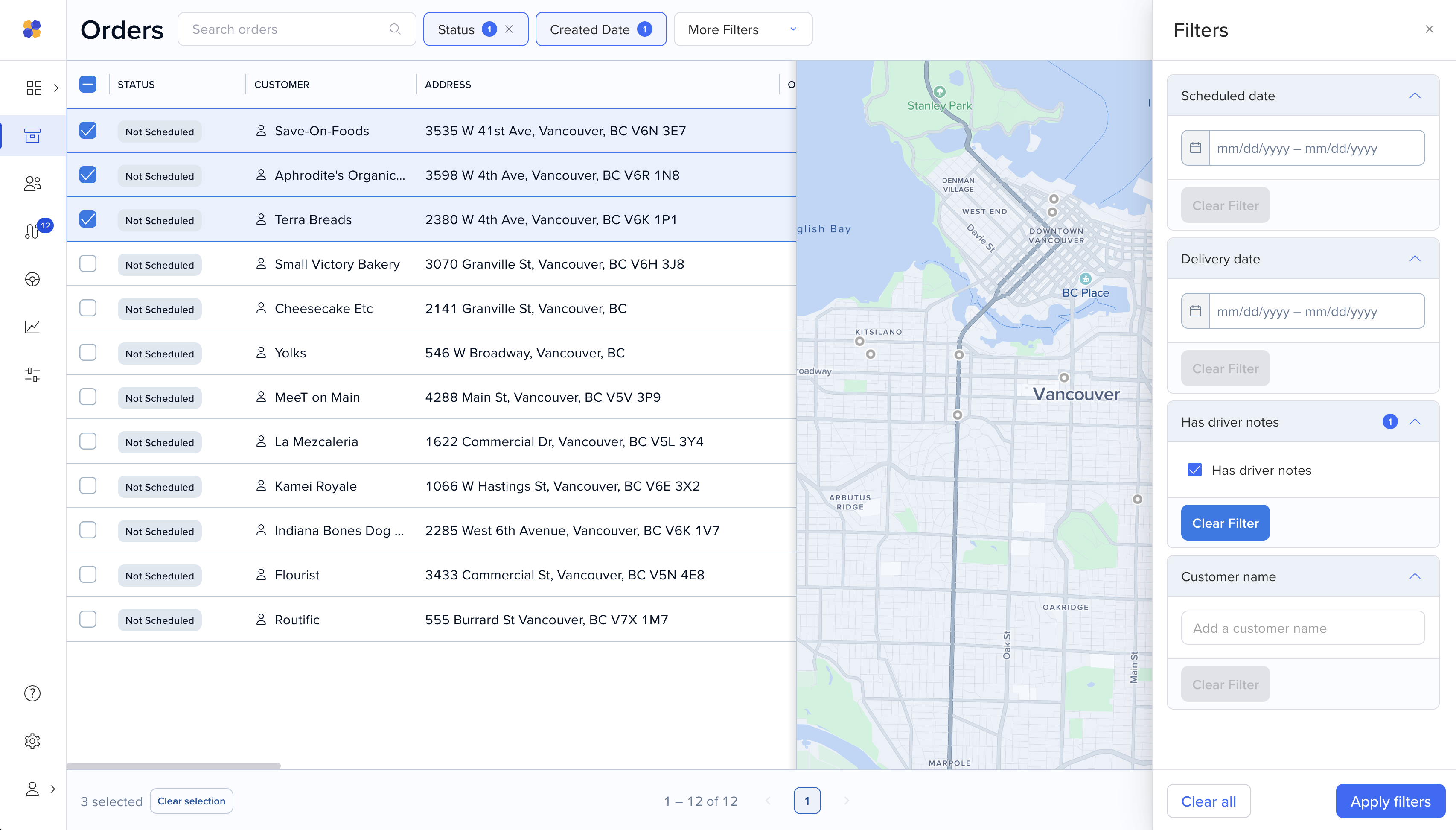
Combine filters to build views for daily review, deeper analysis, or bulk action.
***Good to know: Do you miss the old Routific’s end-of-day report? Filter by scheduled date to get the same view — with more flexibility. Add a filter for missed orders or driver notes to zero in on what needs attention.
Select multiple orders directly from the table and act on them together, instead of opening each one individually.
Simply click on the check boxes next to the orders to select them, and then navigate to the bottom right to either unschedule, edit, add to Customers or delete.
Scheduling directly from the orders page is coming soon — so you'll be able to go from search results straight to a scheduled route.
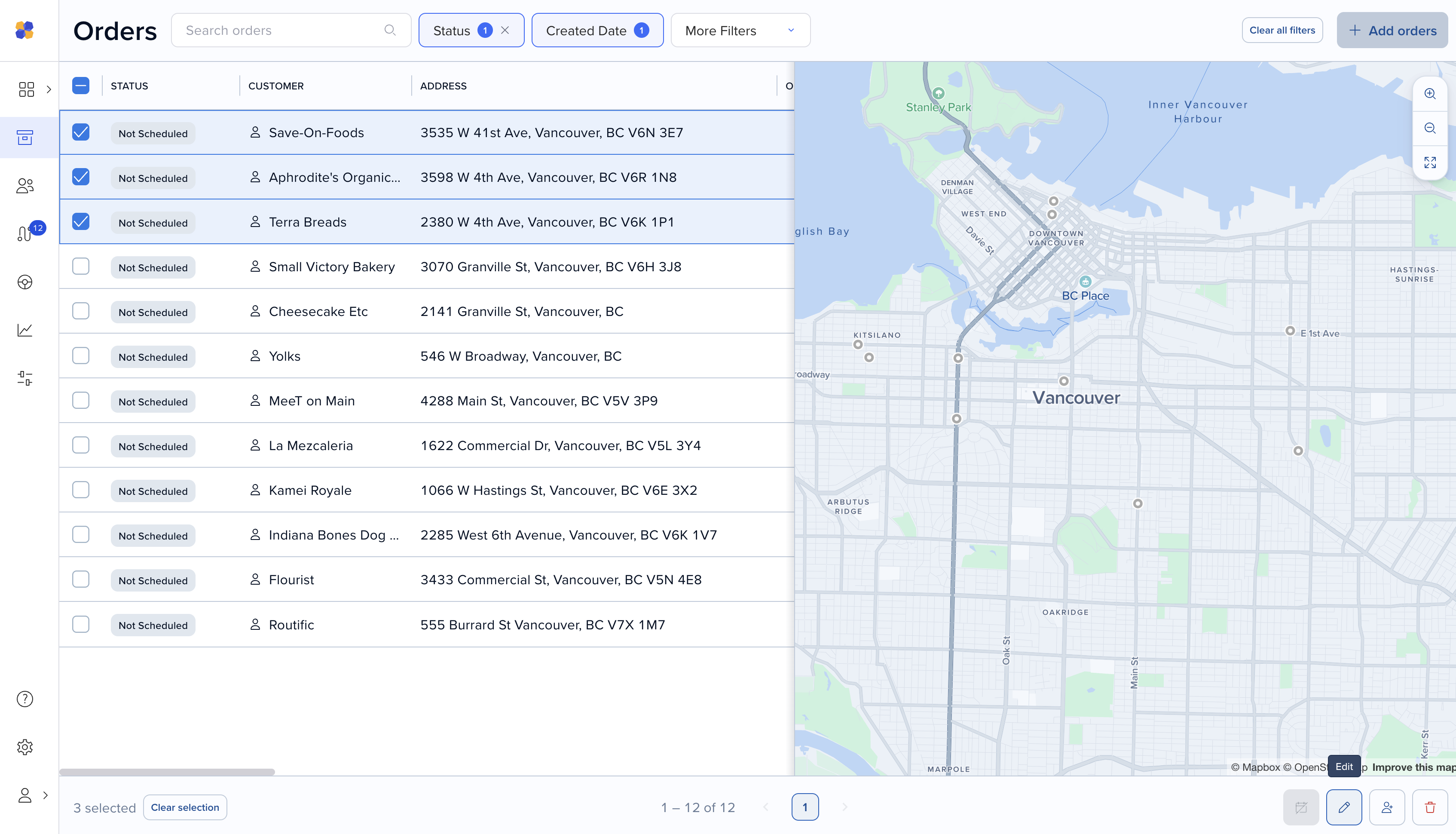
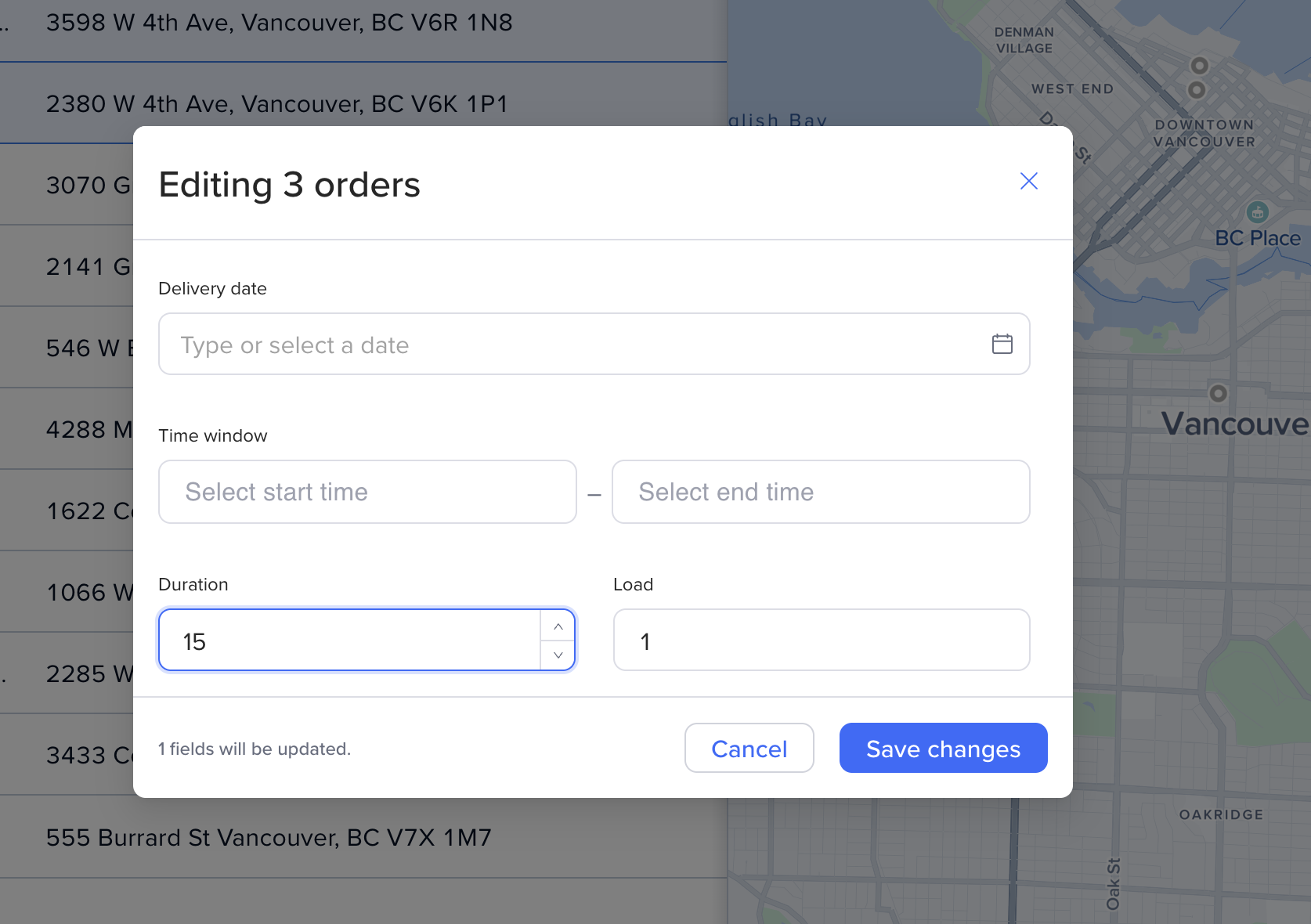
If you click edit, you’ll have the chance to fine-tune some order details right from the scheduling preview. Select a delivery date or adjust time windows, duration, and load.
Resize columns or hide the ones you don't need. The orders page remembers your setup, so it's ready the way you left it next time you're in.