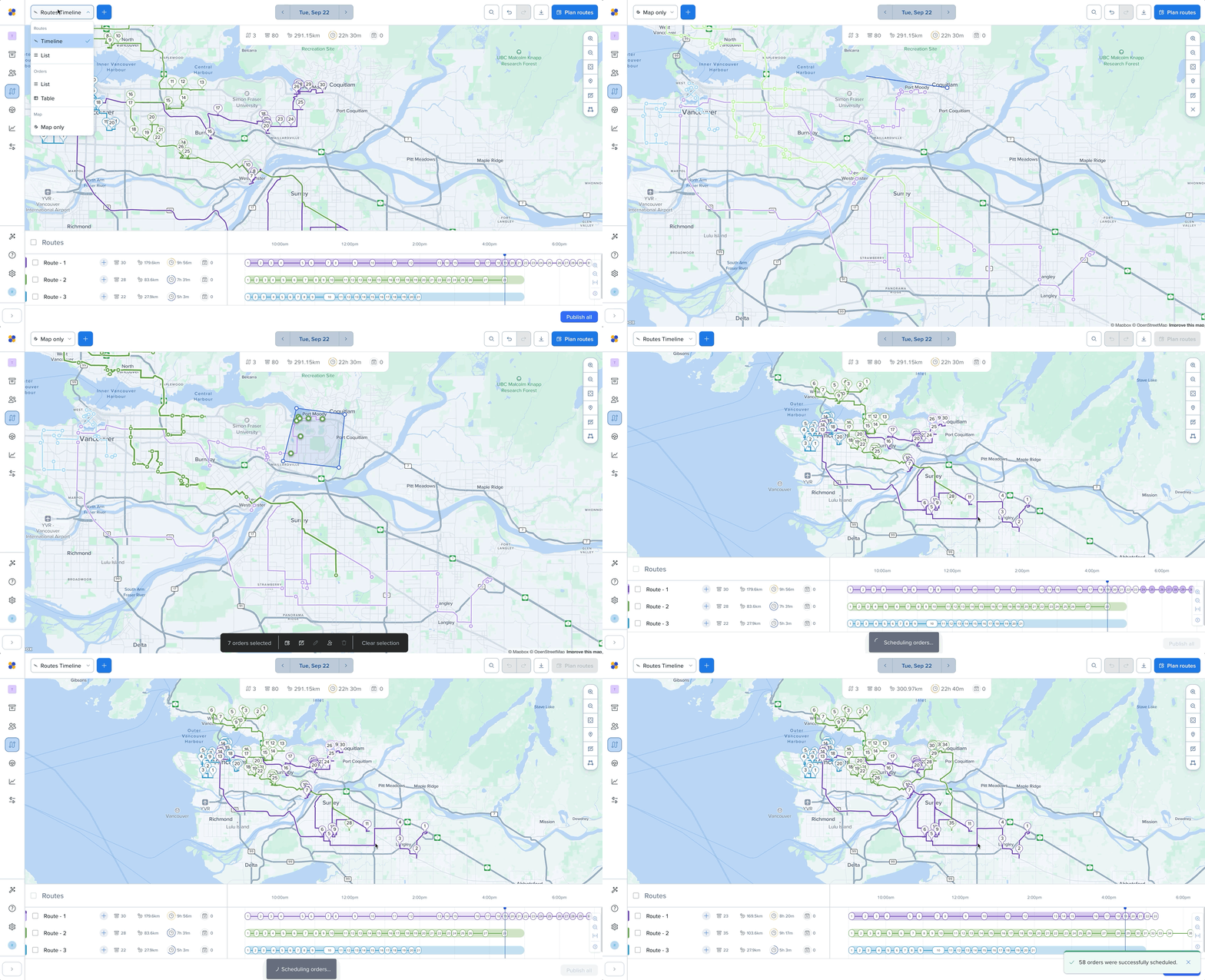
The Timeline is the horizontal section below your map. It's one of the most popular ways to see what your routes look like for the day, make changes to your routes, and understand how they relate to one another.
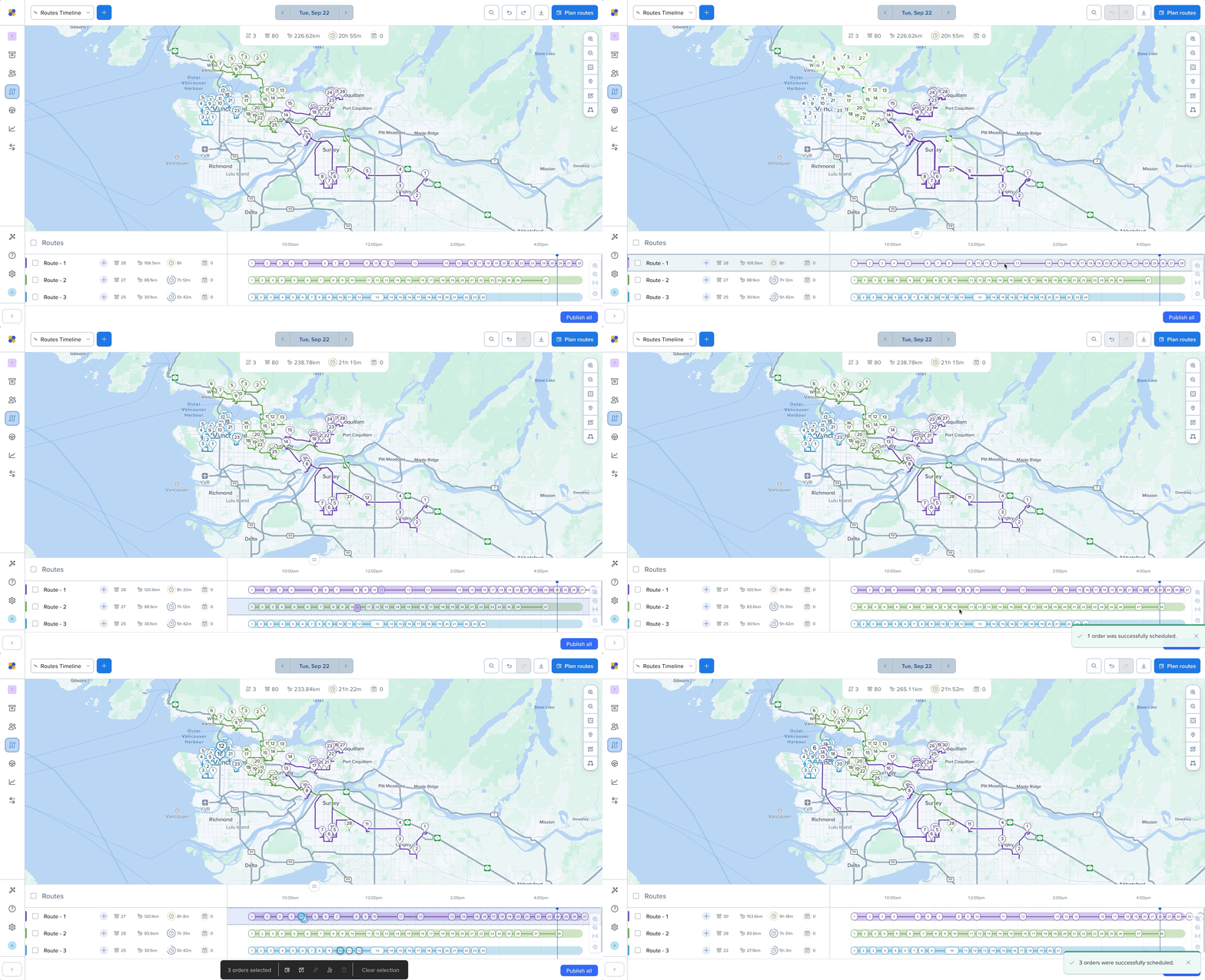
Move a stop within the same route — click and drag a stop to a new position on the route.
Move a stop to a different route — Click a stop and drag it from one route to another. Routific automatically inserts it at the best location.
Move multiple stops at once — hold Shift and click to select several stops, then drag them together onto a different route.
Note: Multi-select drag and drop currently works only when moving stops to another route. To reorder several stops within the same route, move them one at a time.
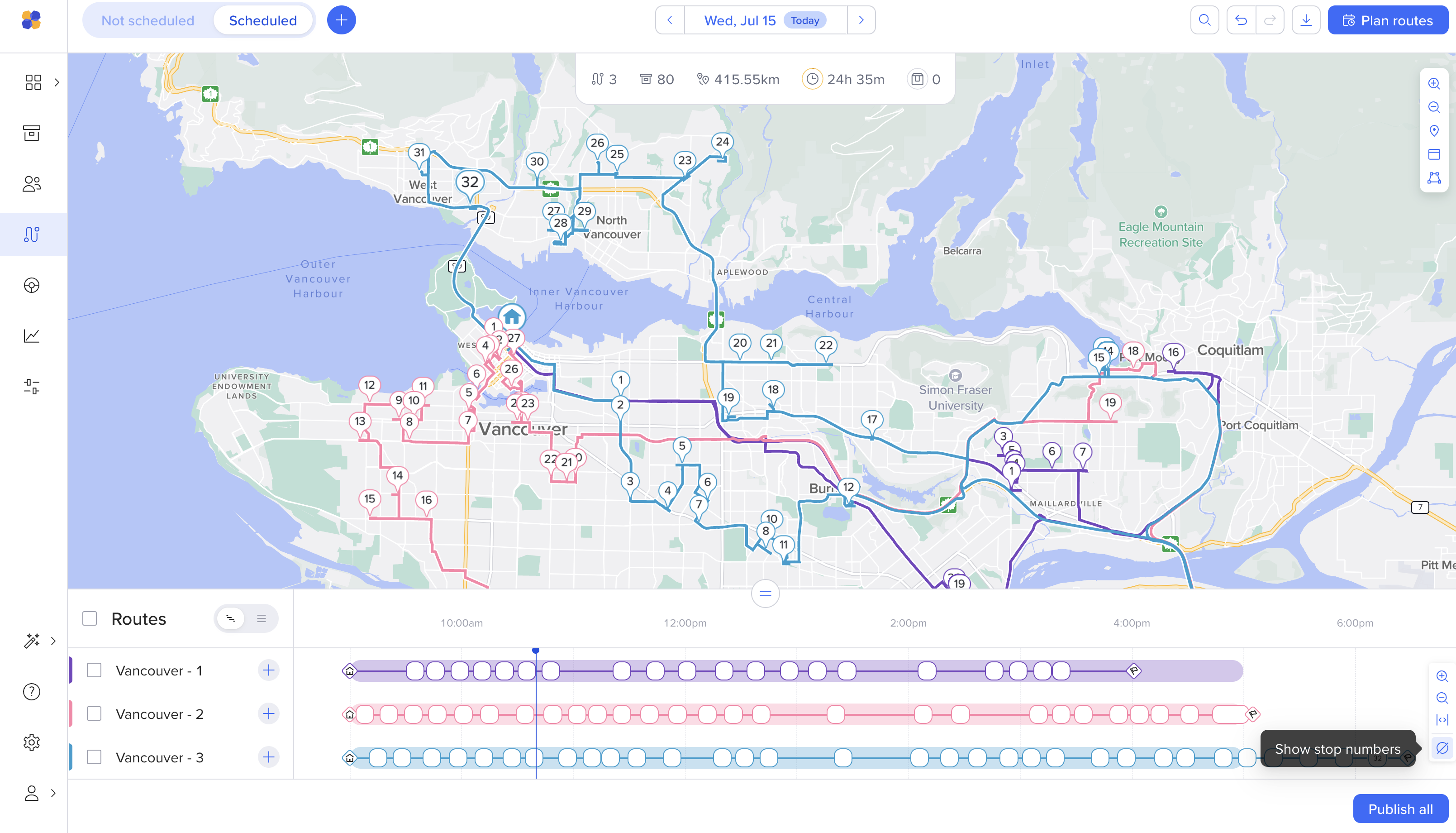
By default, stop numbers stay hidden until you select a route. Click a route to reveal its numbers, along with a list view where you can inspect individual stops and orders in more detail.
If you'd rather see every stop number across all routes at once, turn this setting on at the bottom-right of the screen.
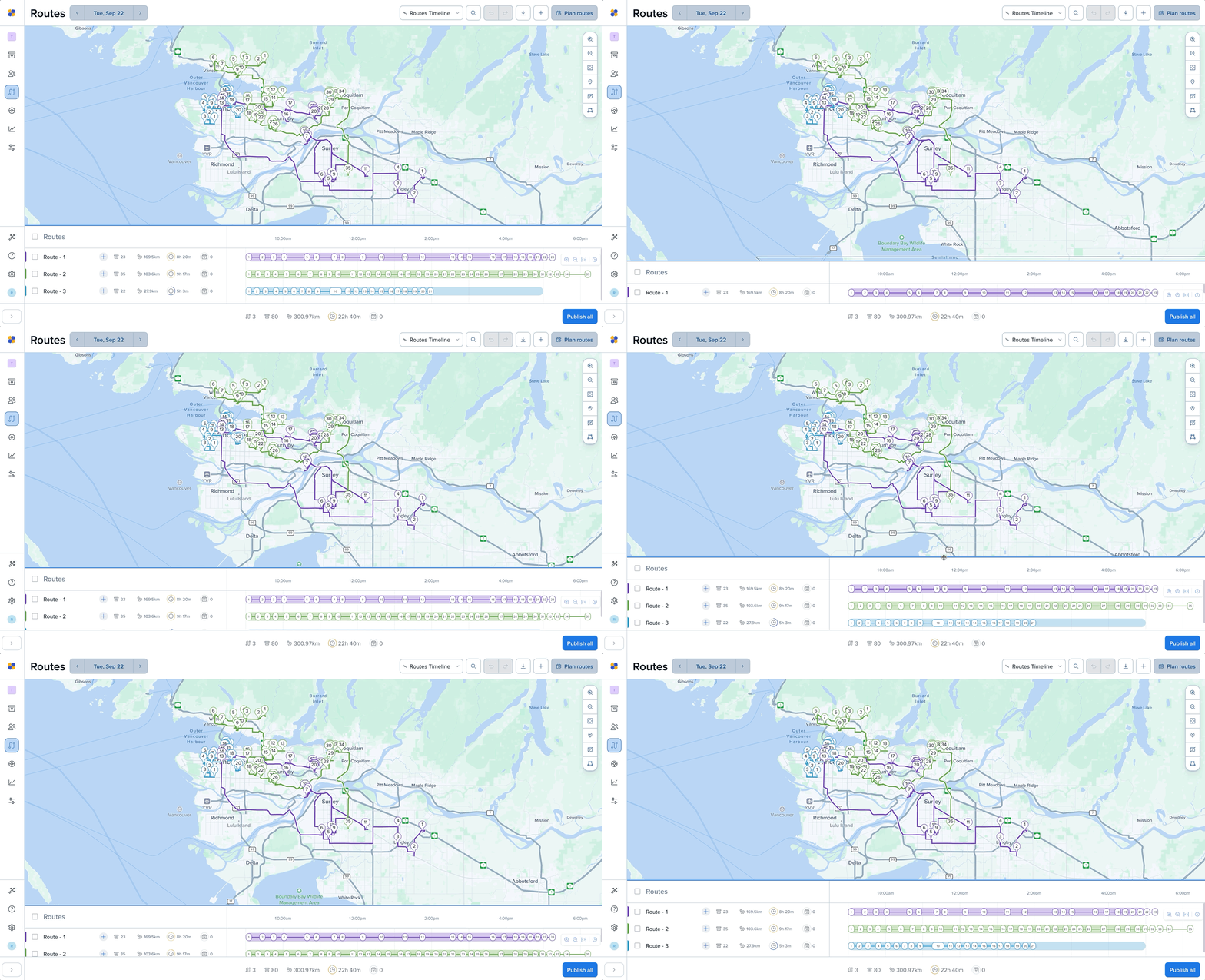
Drag the top edge of the Timeline up or down to change how much space it takes up on screen:
Drag down to focus on a single route.
Drag up to see more routes at once.
Go to drop-down menu in the top-right. Select map only to collapse the Timeline and list views entirely and view a full-screen map. From here, you can use tools like the Lasso tool and make changes to routes directly on the map.
Collapse the left Routes panel by clicking the < arrow to give the Timeline more room.