Webhooks let Routific notify your other systems automatically whenever something important happens — like a route being published or an order being completed. Instead of you (or your team) checking Routific manually, Routific sends the update straight to a URL you provide, the moment it happens.
If you use other software to manage your business — like a warehouse system, a customer notification tool, or your own dashboard — webhooks let that software stay in sync with Routific automatically. For example, you could:
Automatically print packing labels the moment a route is published
Send drivers their route details without anyone exporting a file
Notify customers "your driver is on the way" in real time
Mark orders as delivered or missed in your own system the instant it happens
Trigger a delivery confirmation email or feedback survey after a successful delivery
Routific currently supports three types of webhook notifications:
Route Published — sent whenever a dispatcher publishes or republishes a route. Includes the route details, driver assignment, and the full stop-by-stop timeline.
Route ETAs Updated — sent whenever a driver's estimated arrival times change during their route, so you can keep customers informed in real time.
Order Status Updated — sent whenever an order's delivery status changes (for example, to "delivered" or "missed"), including any proof-of-delivery details.
Only users with an Admin role can set up or change webhooks.
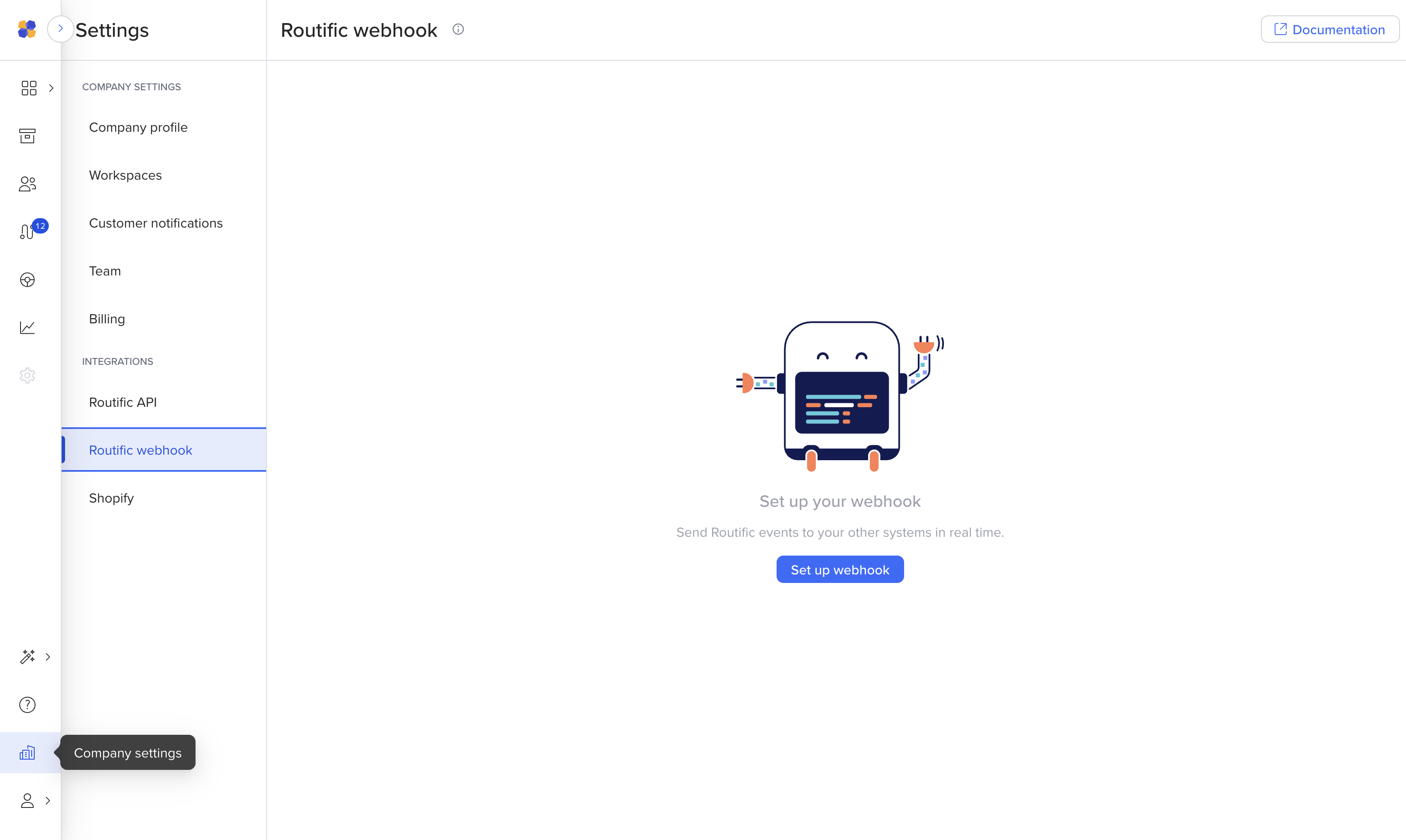
Go to Company Settings → Routific Webhook
Click to create a new webhook and enter the destination URL (this must be a secure https:// address)
Activate the webhook
Click Test Connection to confirm Routific can reach your URL
(Optional) Save the signing secret that's shown — store this somewhere secure, as you'll need it to verify that incoming requests genuinely came from Routific. Learn more here.
Tip: Your developer or technical team will need this signing secret to set up verification on their end. See the Verifying Routific Events guide for the technical details.
If you ever suspect your signing secret has been exposed, you can rotate it from the same Webhooks settings page. After rotating, both your old and new secrets will work for 24 hours — giving your team time to update their systems without any interruption. If you believe the old secret was compromised, you can also invalidate it immediately instead of waiting out the grace period.
Admins can create, edit, activate/deactivate, and test webhooks
Other roles (Dispatcher, View Only) can view the webhook settings page but cannot make changes
This article covers the basics of turning webhooks on. If your team is building the integration that receives these webhooks, point them to our developer documentation:
Routific Webhooks overview — full technical reference, payload formats, and field descriptions
Verifying Routific Events — how to confirm a webhook genuinely came from Routific