Not all drivers work at the same pace. Some consistently move faster and can handle more orders; others need a lighter workload to finish on time.
Driver Speed lets you set a speed factor on individual drivers – affecting not only how fast they drive to a location (driving time) but also how fast they work at a location (order duration time).
By adjusting your driver’s speeds, Routific's optimization will more accurately reflect how your team actually performs.
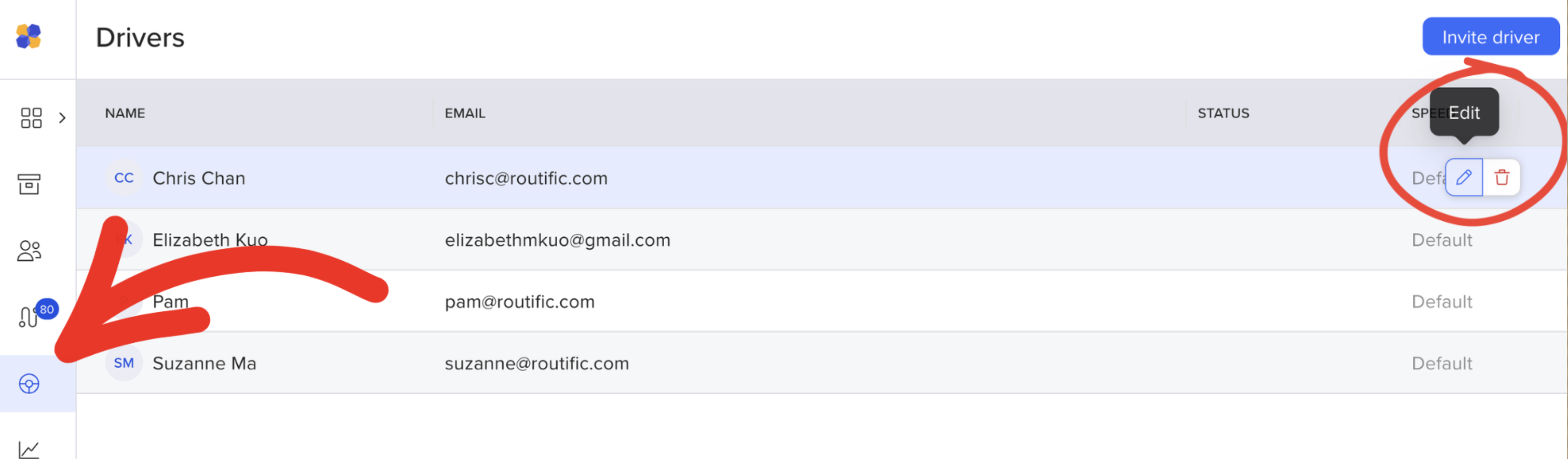
Click on the steering wheel to access the Drivers page.
Hover over the driver you want to edit. Click the pencil icon.
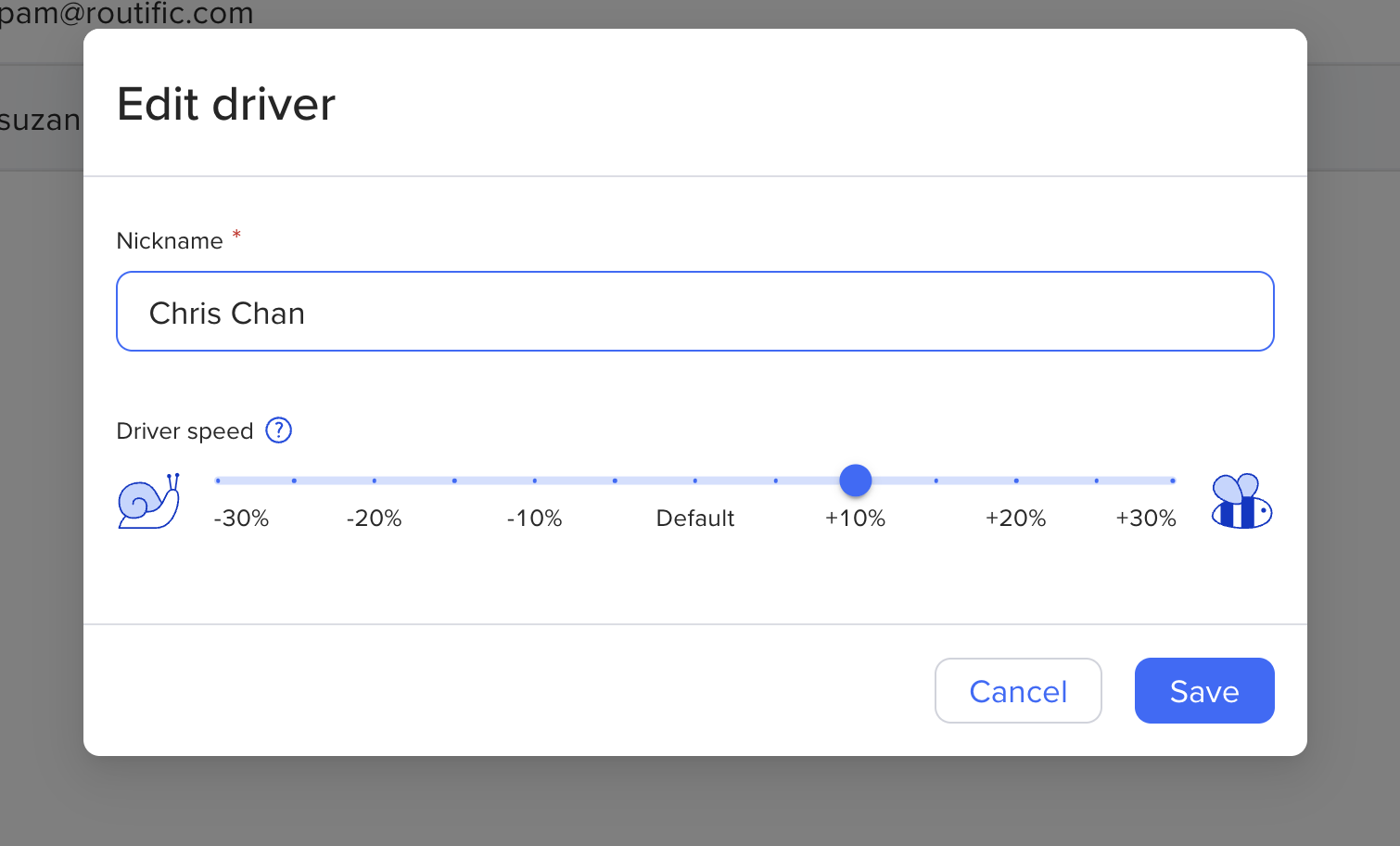
Use the Driver Speed slider to set their speed.
Click Save.
The slider ranges from -30% to +30%, with Default in the center. Move it right for faster drivers, left for slower ones.
+10% to +30% — driver works faster than average (Routific builds shorter ETAs and can assign more stops)
Default — no adjustment; Routific treats this driver as average
-10% to -30% — driver works slower than average (Routific builds longer ETAs and assigns a lighter workload)
The speed setting affects two things:
how fast Routific assumes the driver travels between stops
how quickly they complete each stop
Both are scaled together.
That means a driver set to +30% isn't just assumed to drive faster — Routific also assumes they'll spend less time at each delivery. The combined effect can meaningfully change total route time.

To make sure a driver's speed is factored in, you have two options:
Assign drivers to their routes before clicking Schedule, or
Use the assign drivers step within the scheduling flow
Either approach ensures Routific knows which speed to apply when building the optimization.
If a route has no driver assigned at scheduling time, Routific uses Default (no adjustment).
If you change a driver's speed setting after routes have already been scheduled, Routific will ask if you want to update their existing routes to reflect the new speed. This applies to routes scheduled for today or a future date that the driver hasn't started yet.
Click Yes, update routes to recalculate ETAs for all of that driver's unstarted routes
Click No, don't update routes to save the new speed setting without changing any existing routes
If the recalculated ETAs cause any constraint violations (e.g. a time window is now missed), Routific will surface the existing violation warnings so you can make manual adjustments.
An older version of Routific had a driver speed setting that worked a little differently. There, it only increased or decreased travel times from one location to another. It did not affect durations at each stop.
In the new Routific, adjusting a driver’s speed will affect both how fast Routific assumes the driver travels between stops and how quickly they complete each stop.
Please note driver speeds will not copy over from the old Routific to the new. You will need to recalibrate your driver speeds if you have just transitioned to the new Routific.