Save recurring customers to create a master list you can reuse again and again! Instead of uploading a spreadsheet or manually creating orders each time, simply select from your saved customers when building routes.
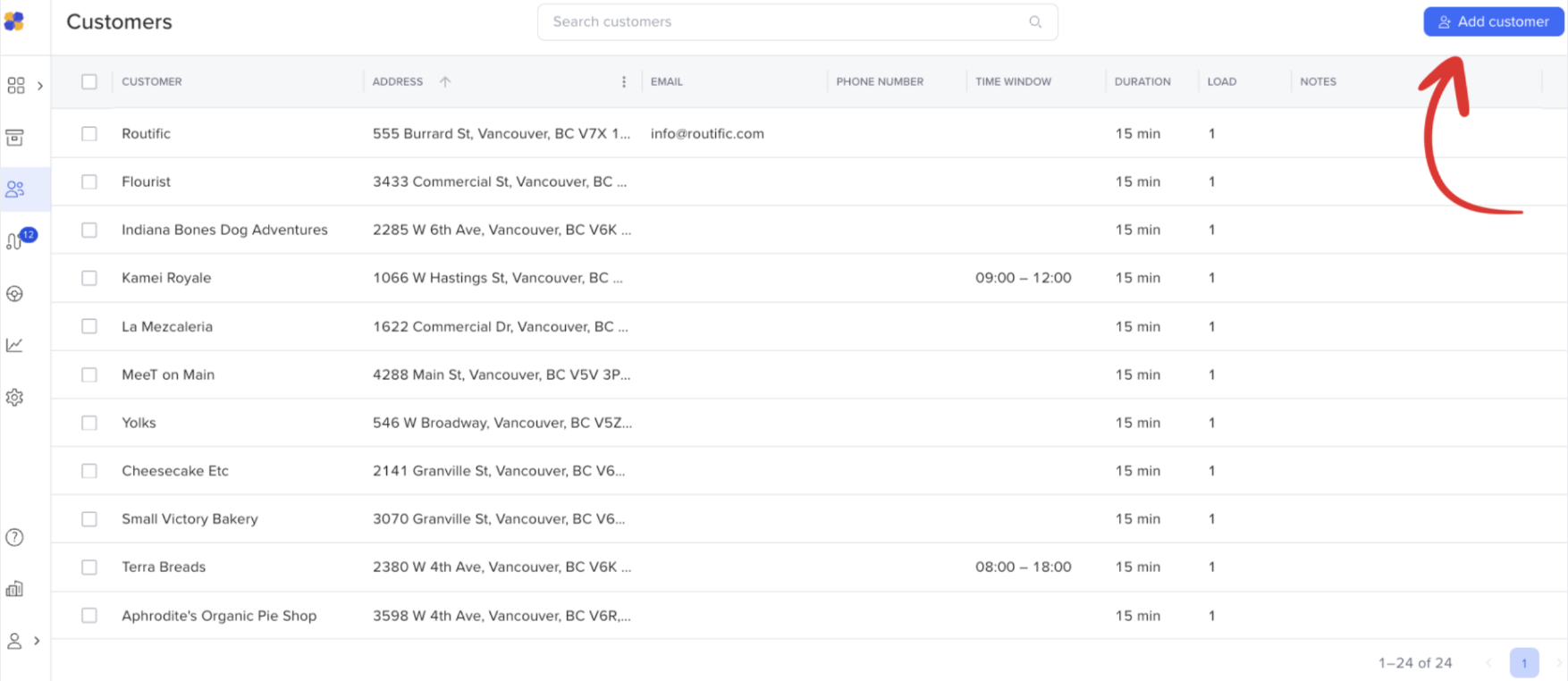
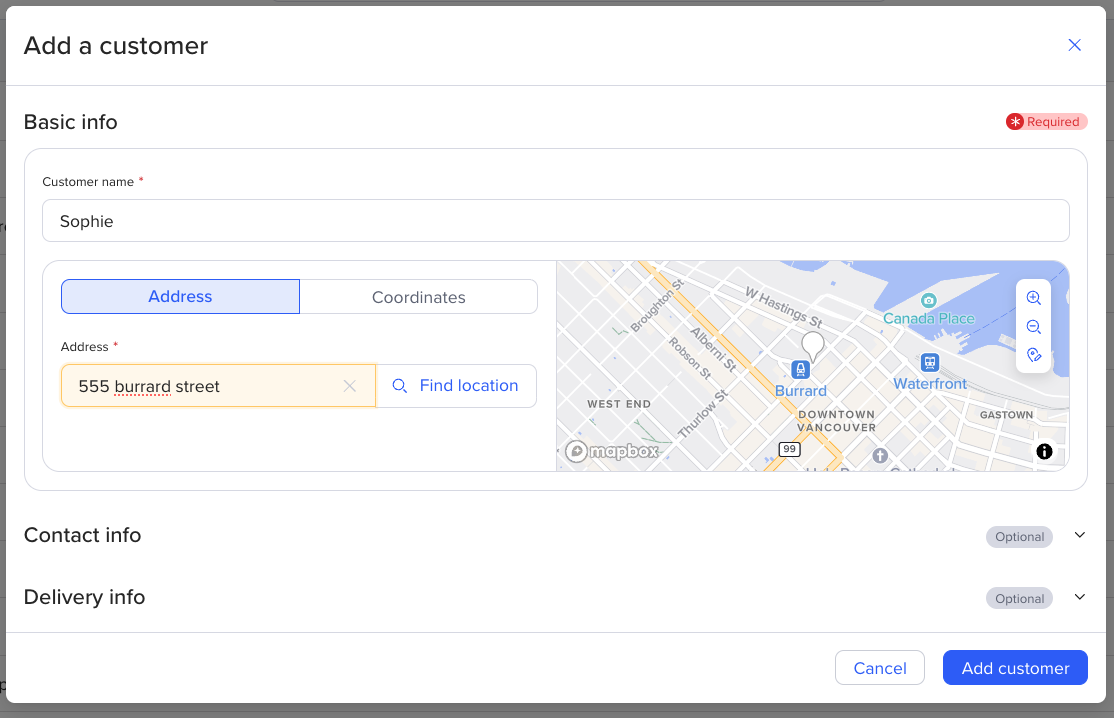
Click the blue Add customer button in the top right-hand corner of the customers page. You will then be prompted to fill in your customer’s information.
There are two ways to edit your customers.
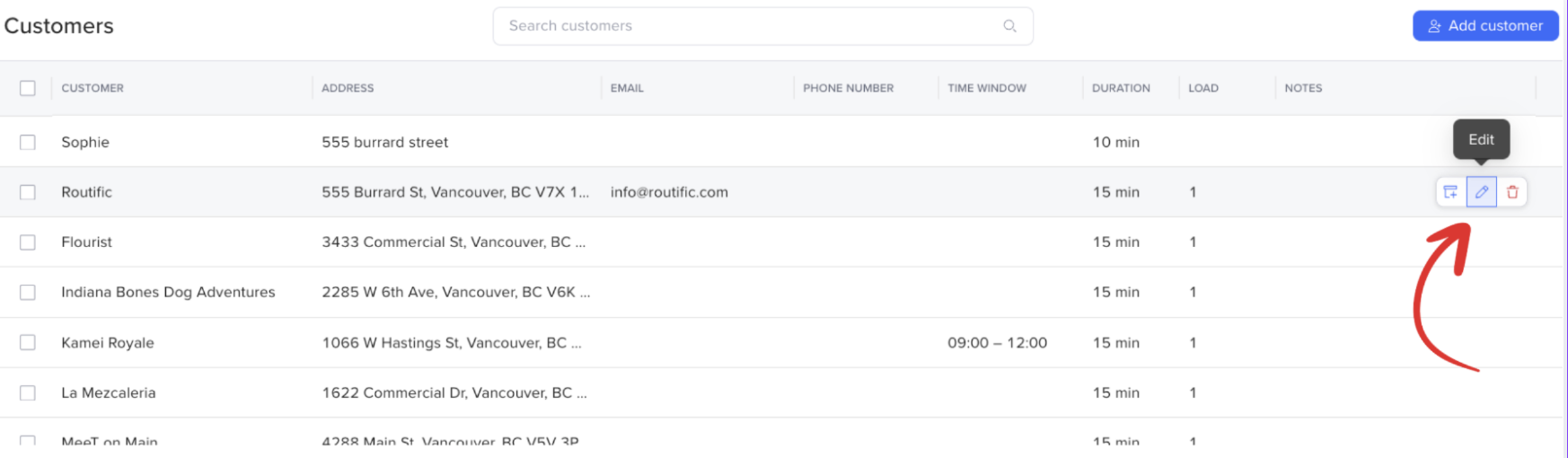
Hover over any customer in the Customers page, and a pencil icon will appear on the right-hand side. Click the pencil icon to open the customer details. Once you have made your changes, click Save changes.
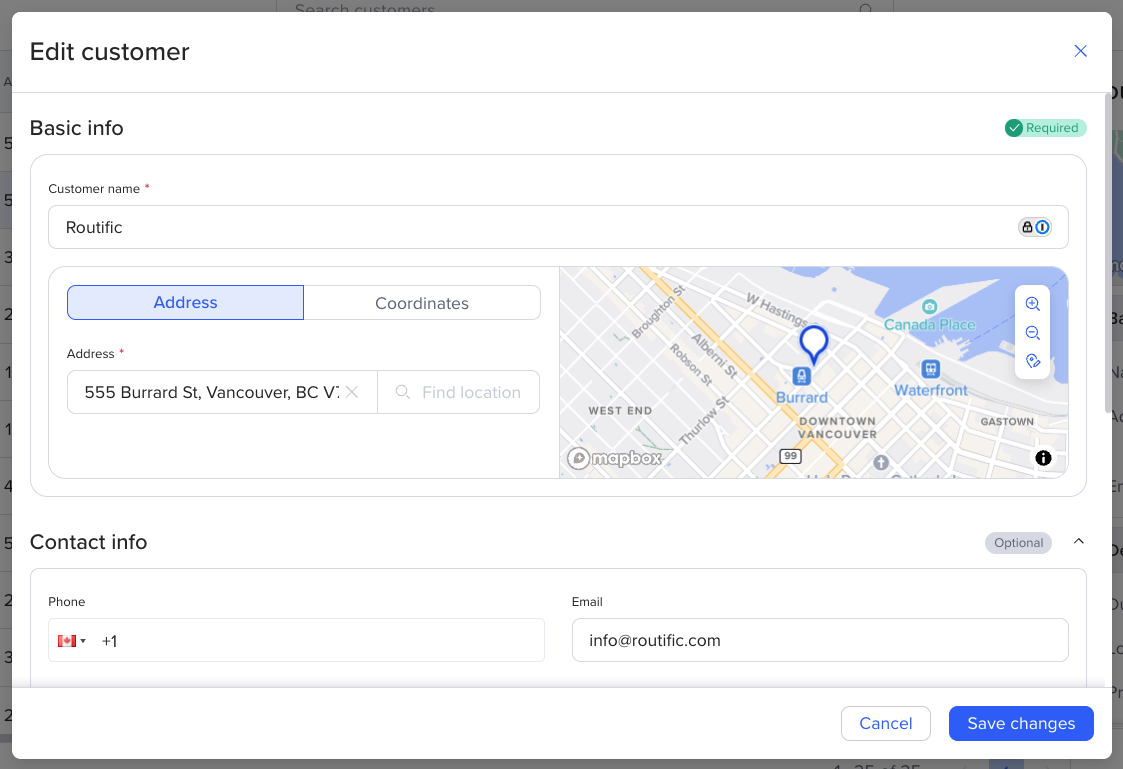
Click on any customer in the Customers page, and you will see a right-hand panel open with all the customer details. In the top right corner, a pencil icon will appear. Click the pencil icon to open the customer details. Once you have made your changes, click Save changes.
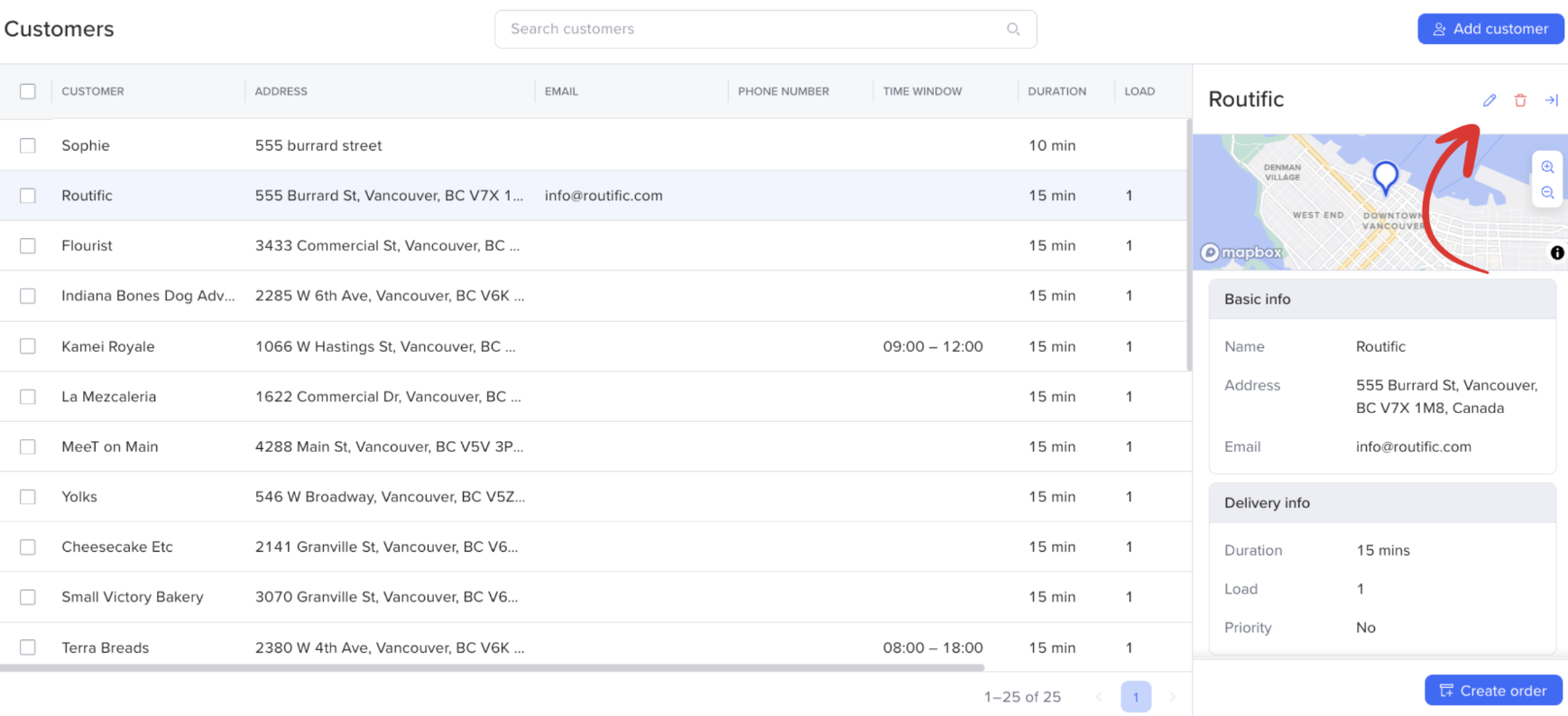
*Please keep in the mind that editing your customers will NOT effect any scheduled or not scheduled orders created from the customer. To save your customer information, you must do that within the Customers page. Likewise, editing your order information will not change the information stored in Customers. You must make changes within the Customers page to save it going forward.
There are two ways to delete your customers!
Hover your mouse over any customer in the Customers page, and a red trash can icon will appear on the right-hand side. Click it to delete your customer.

Click on any customer in the Customers page, and you will see a right-hand panel open with all the customer details. In the top right corner, a red trash can icon will appear. Click it to delete the customer.
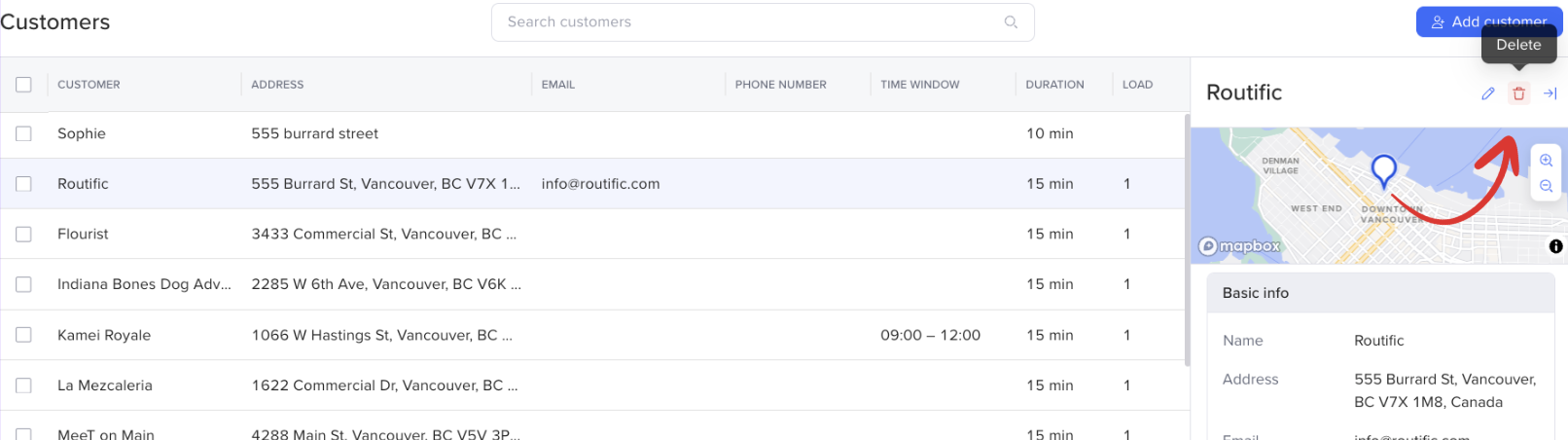
*Please keep in the mind that deleting your customers will not effect any scheduled or not scheduled orders created from the customer.
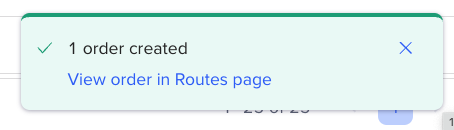
Hover over any customer in the customer page, and a box icon with a plus sign will appear on the right-hand side. Click the box icon to create an order.
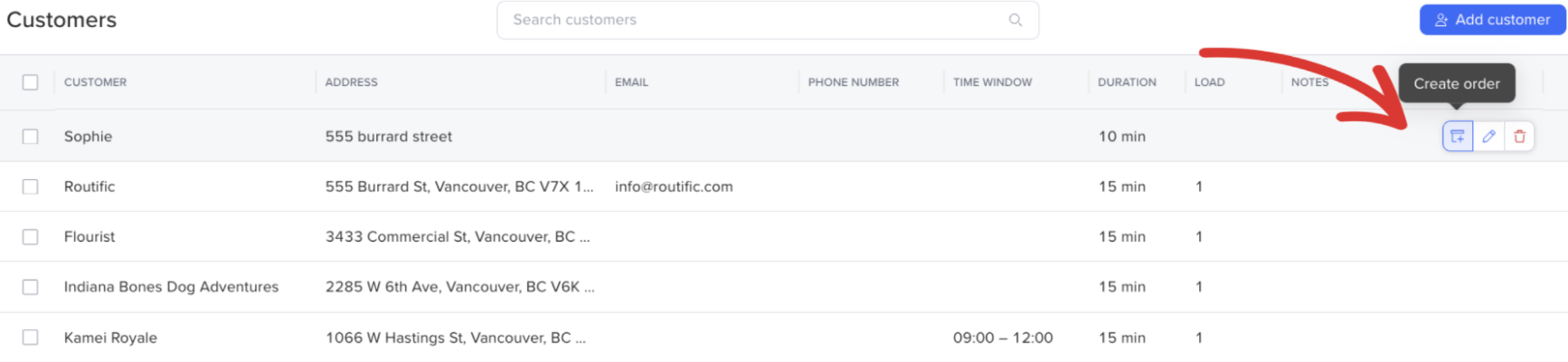
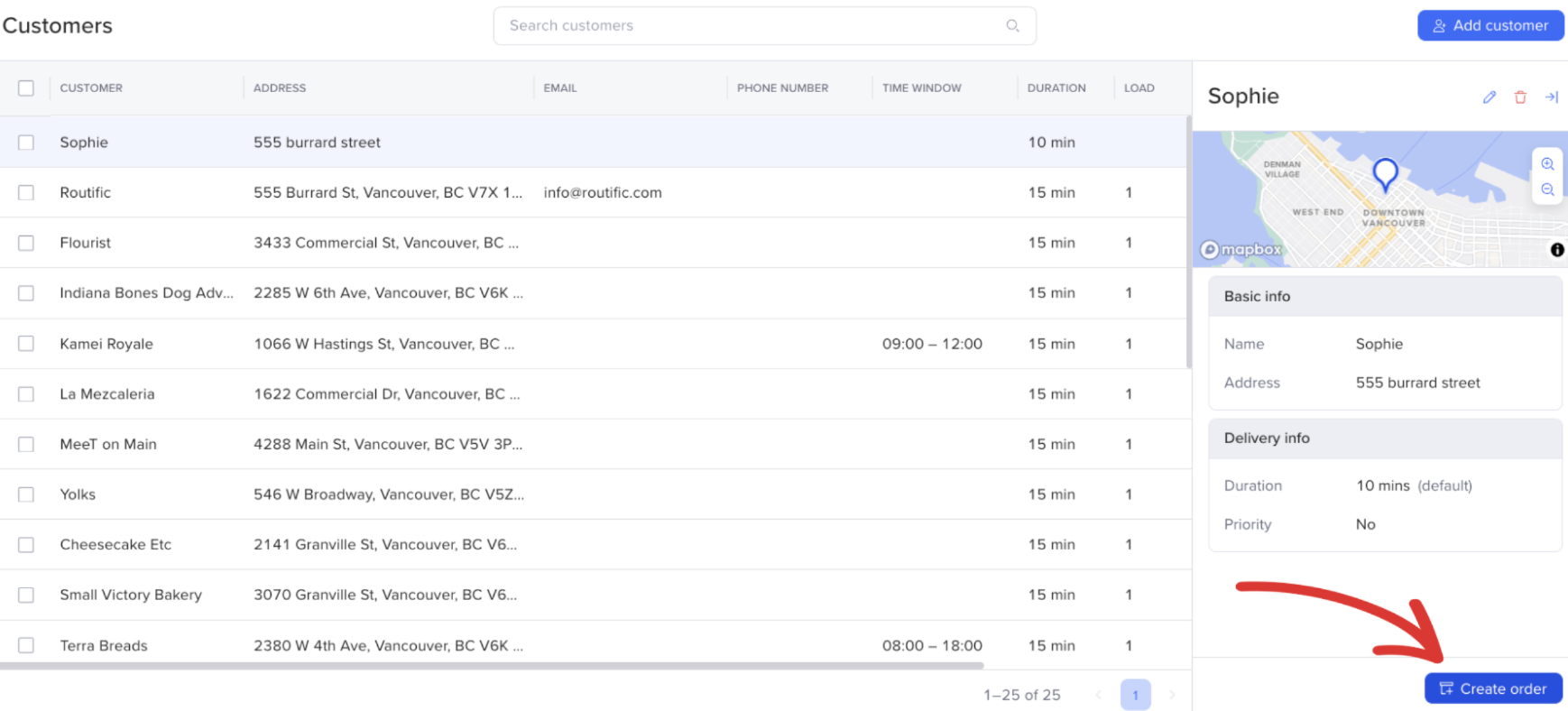
You can also create an order by clicking on an existing customer, and then clicking Create order in the bottom right hand corner.
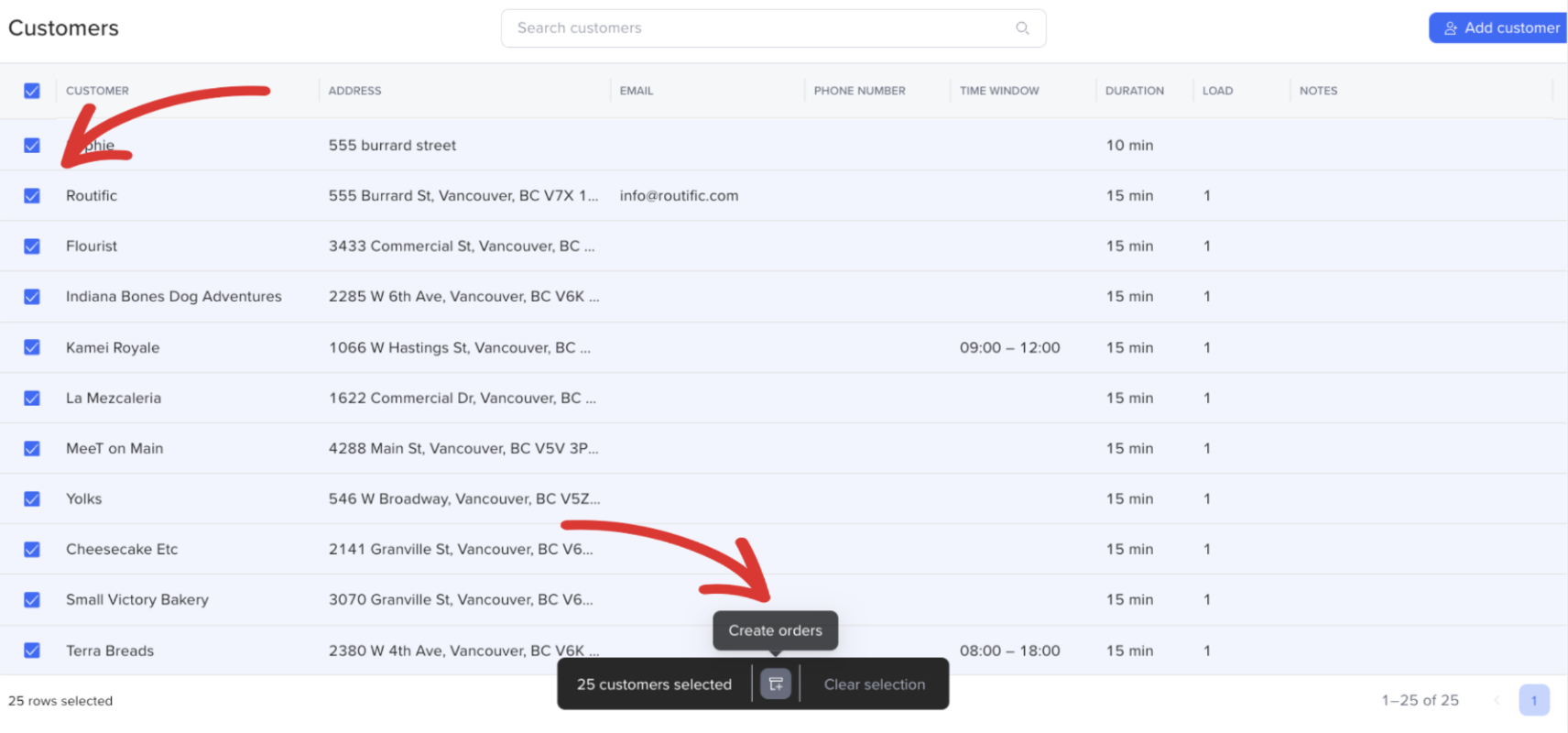
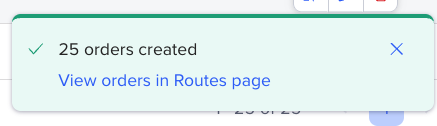
Select all your desired customers by clicking the boxes of the left-side. Click the top box to select all. You can also search for customers in the search bar and select them that way. Then click the box icon with a plus sign at the bottom of your screen.
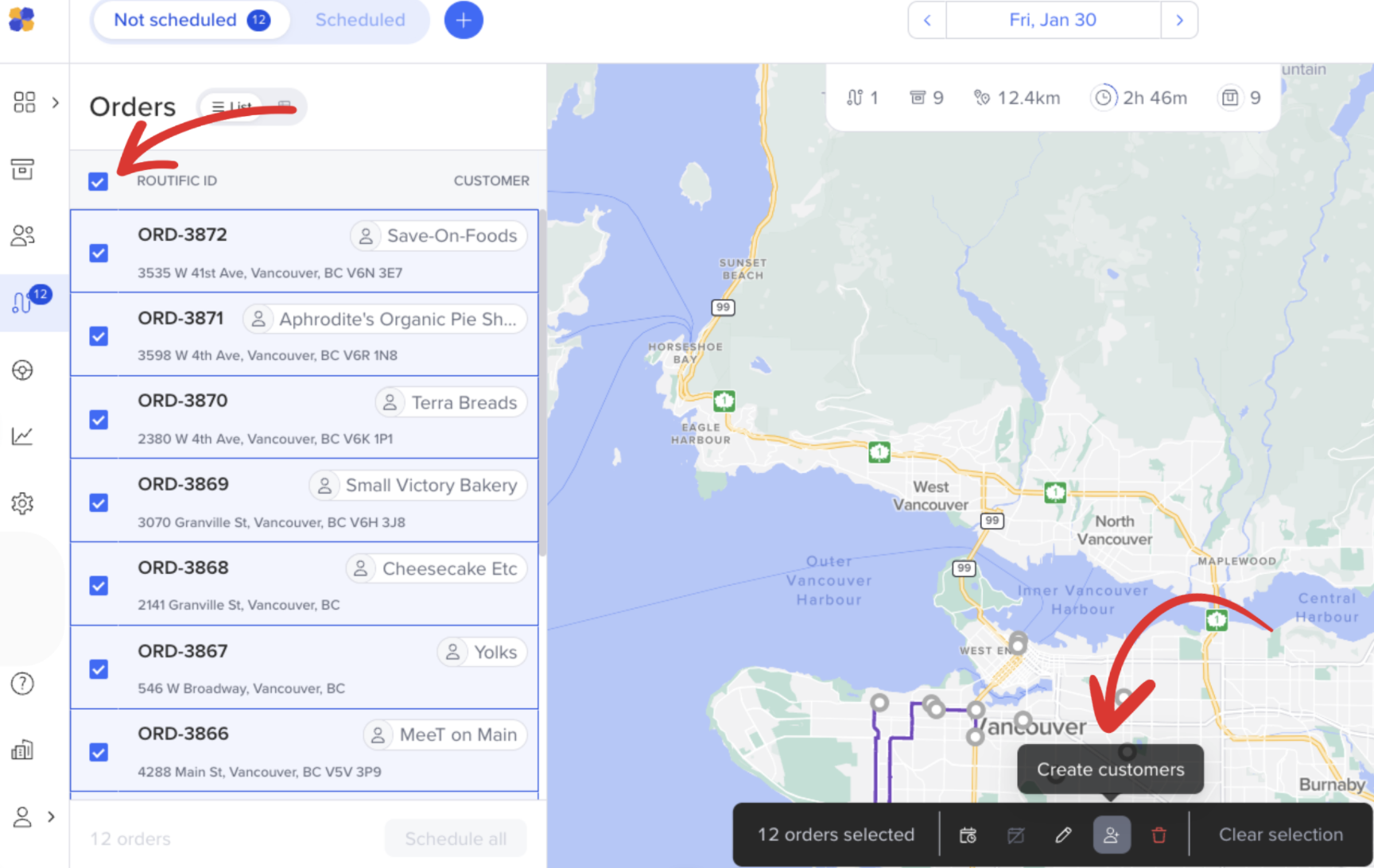
Once you have uploaded your orders, you can select all with the select all box in the top left of the not-scheduled tray. Then, click the Create customers icon at the bottom of the screen. You can add up to 100 customers at a time
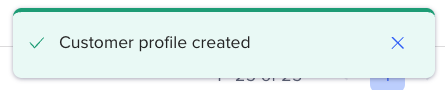
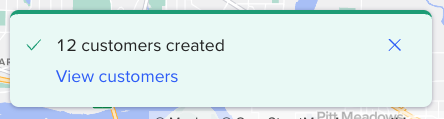
You will then get a confirmation of your customer creation.
This option works great for bulk customer creation!